Configure ALB and Target Group
1. Create Target Group
1.1. Basic Target Group Configuration
- Access EC2 Console > Target Groups > Create target group
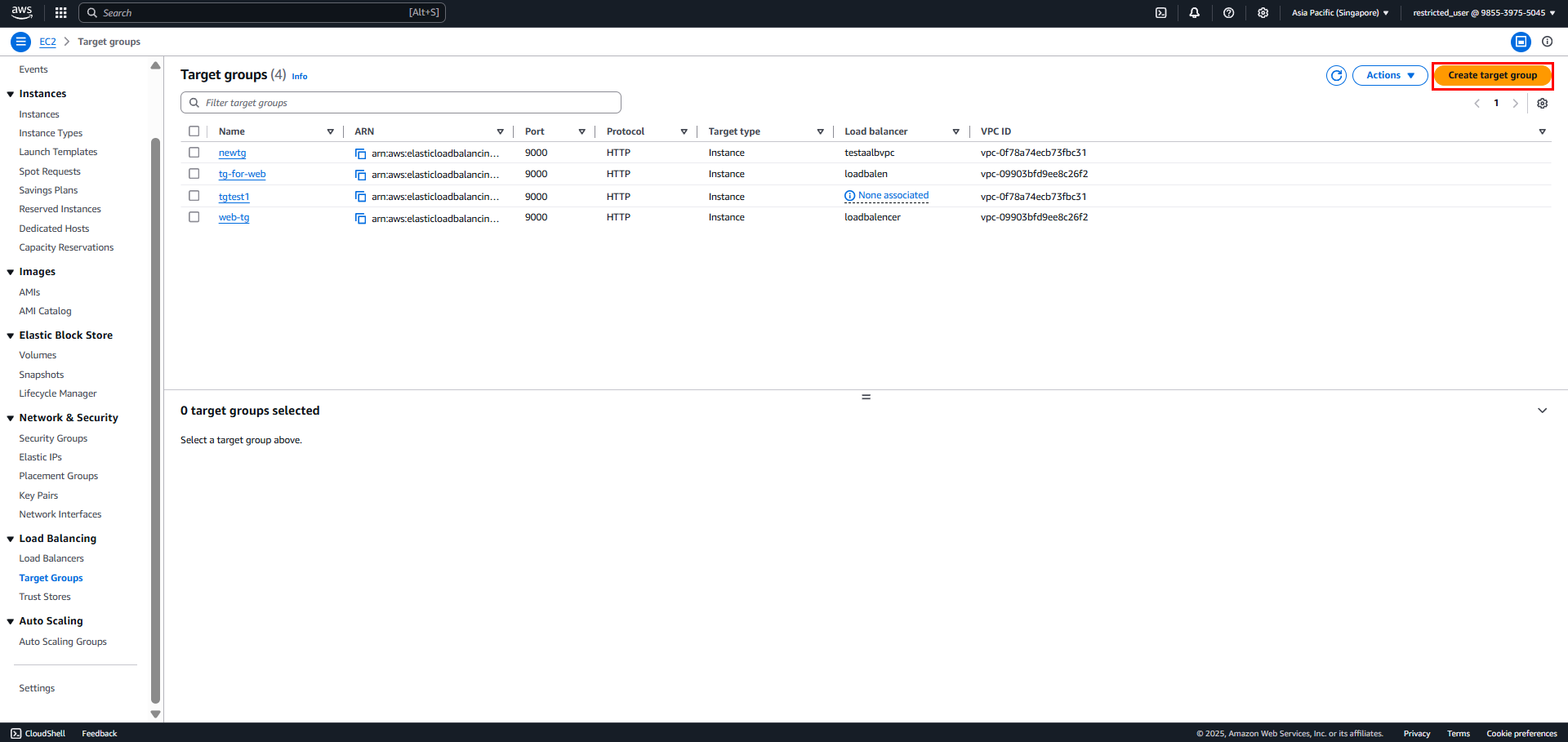
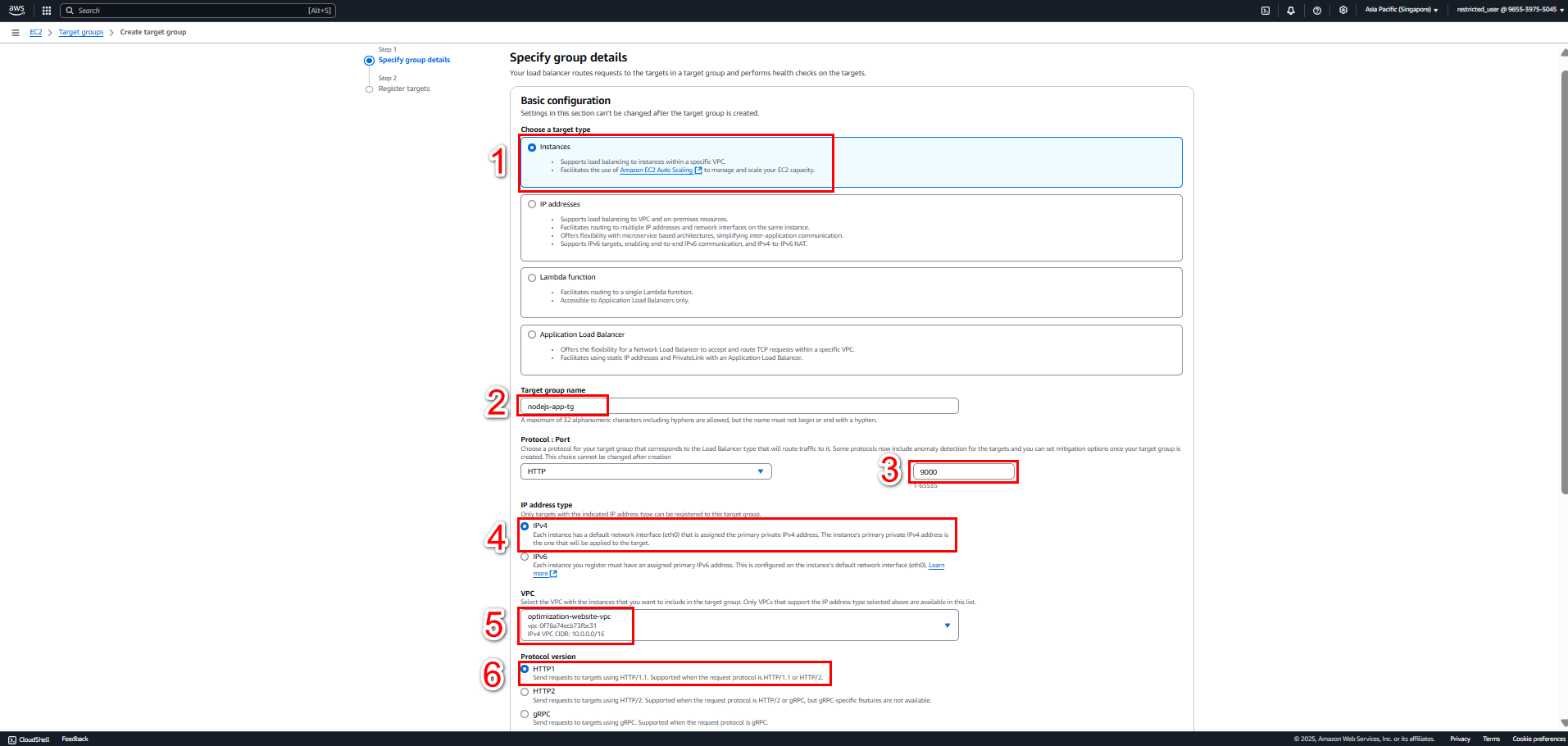
- Specify group details:
- Choose a target type: Instances
- Target group name:
nodejs-app-tg - Protocol: HTTP
- Port: 9000
- VPC: Select created VPC
- Protocol version: HTTP1
1.2. Health checks
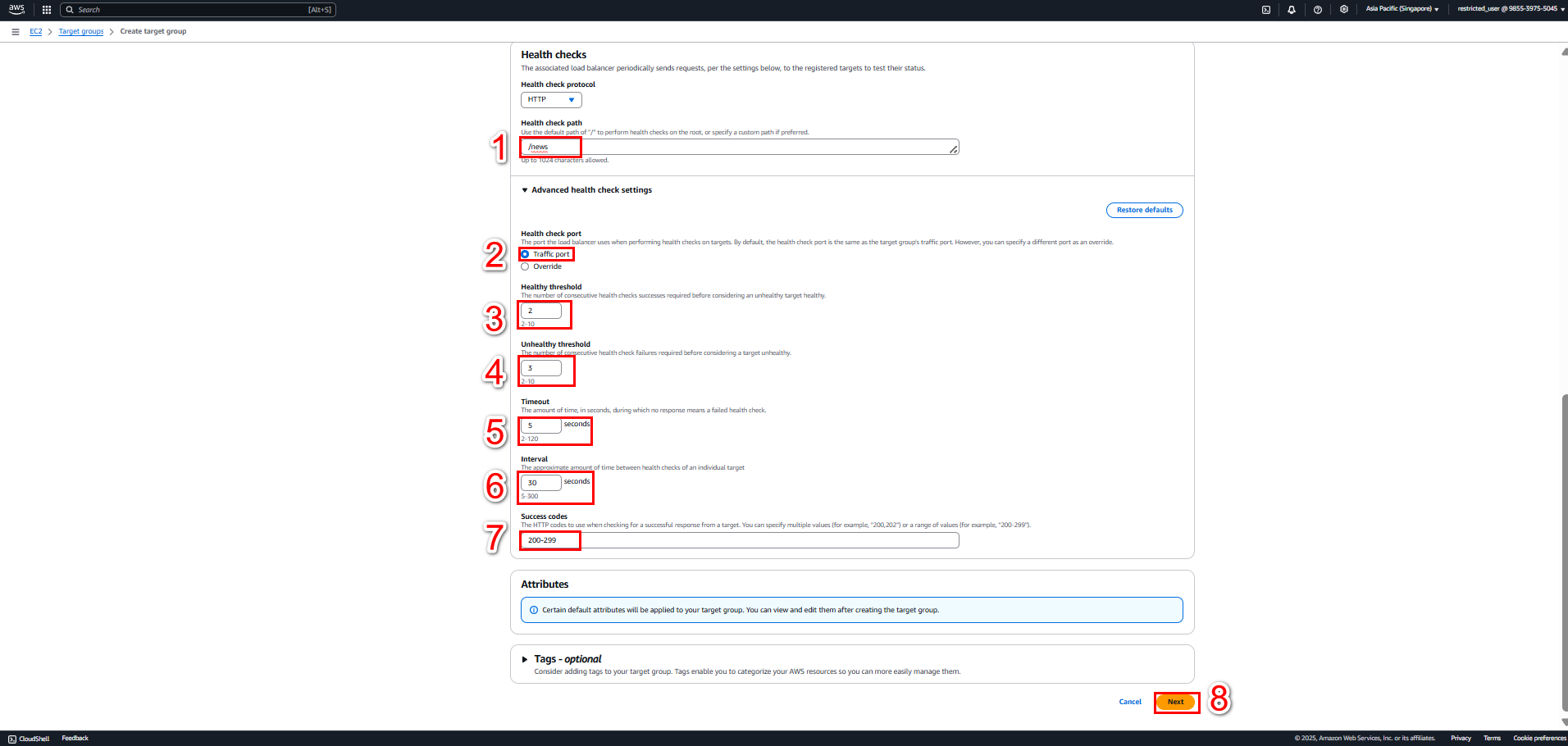
Health check settings:
- Protocol: HTTP
- Path:
/health
Note: Must Add Health Check Route to Project
// Add to app.js or routes app.get('/health', (req, res) => { res.status(200).json({ status: 'OK', timestamp: new Date(), uptime: process.uptime() }); });- Port: traffic port (9000)
- Healthy threshold: 2
- Unhealthy threshold: 3
- Timeout: 5 seconds
- Interval: 30 seconds
- Success codes: 200-299
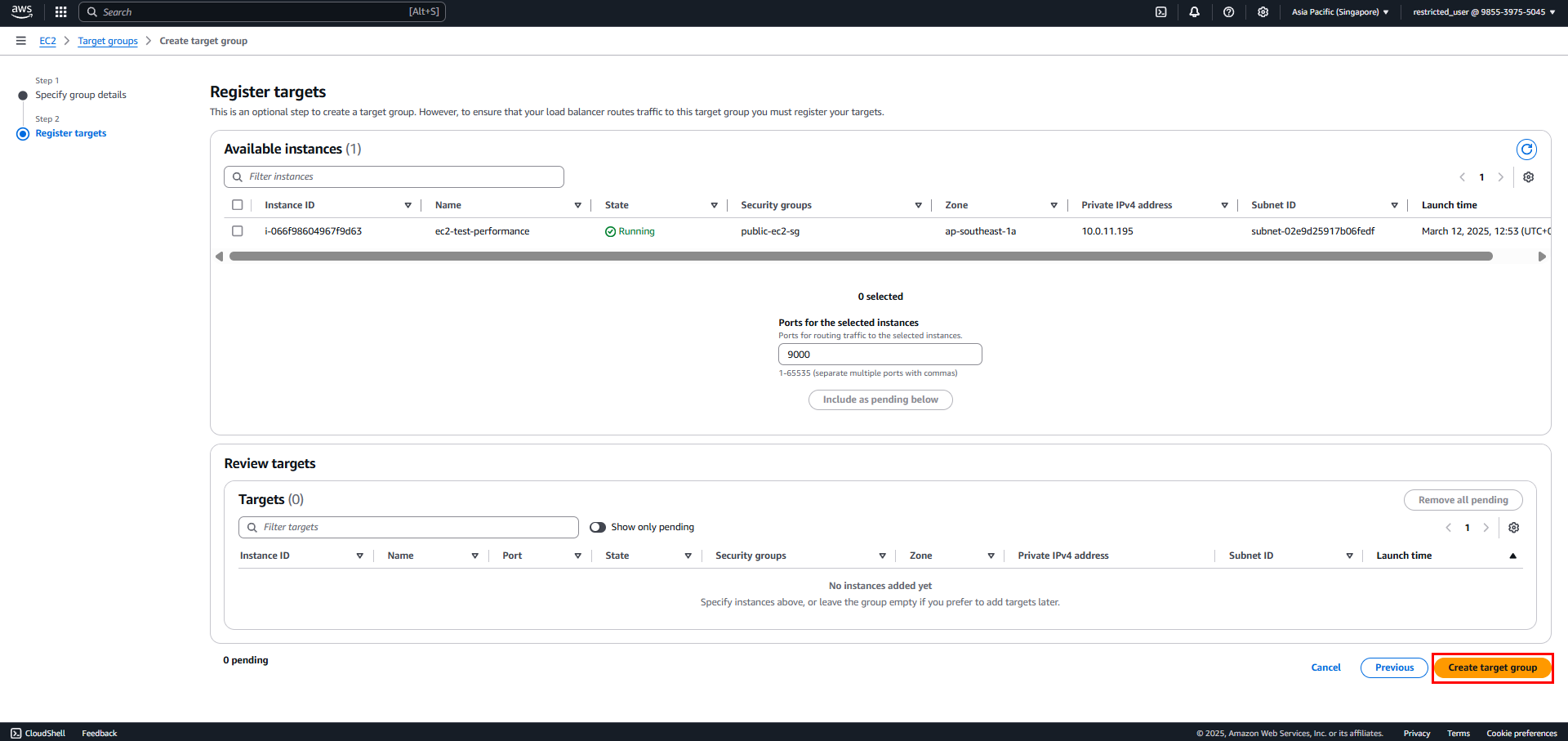
1.3. Register Targets
Click “Create target group”
2. Create Application Load Balancer
2.1. Basic Configuration
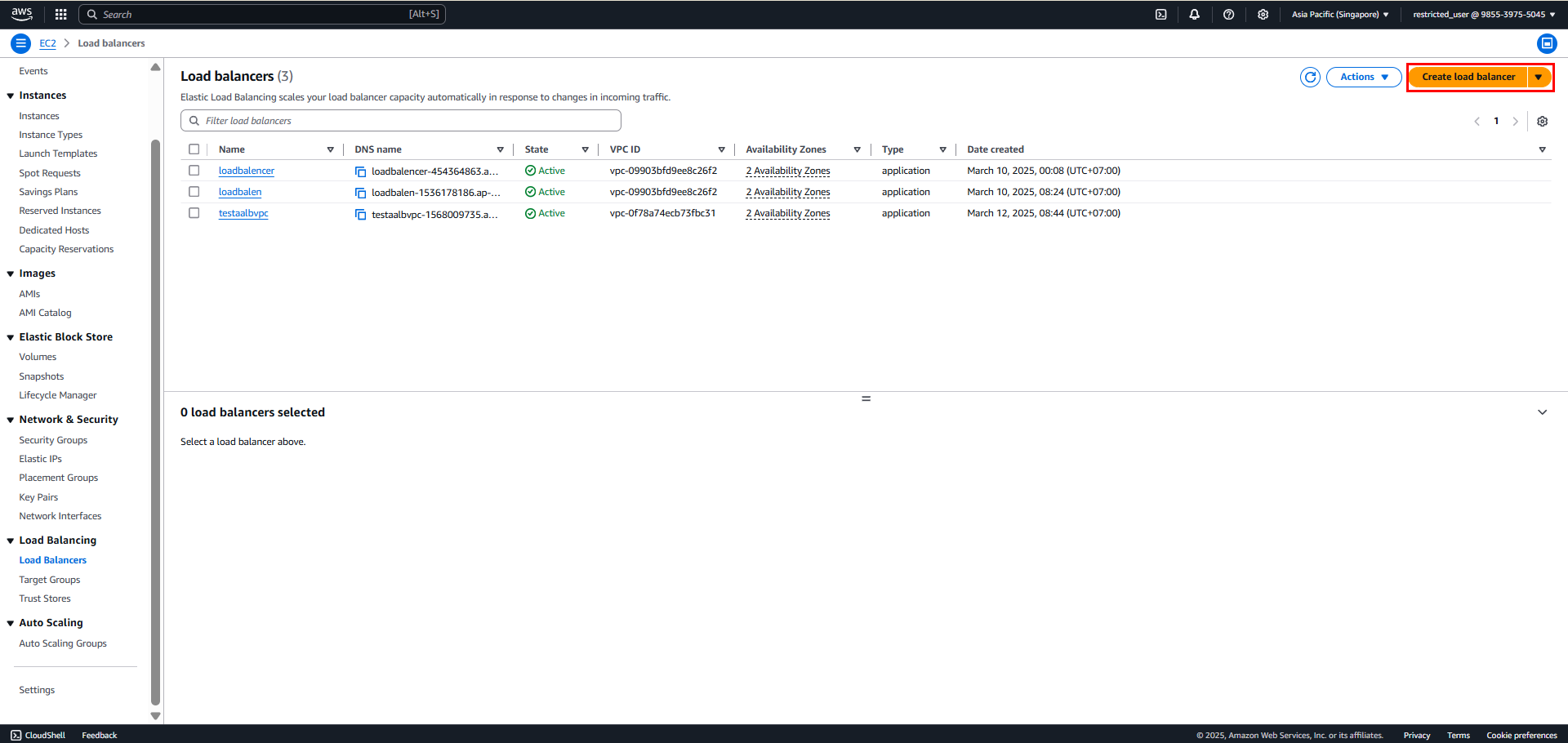
- Access EC2 Console > Load Balancers > Create Load Balancer
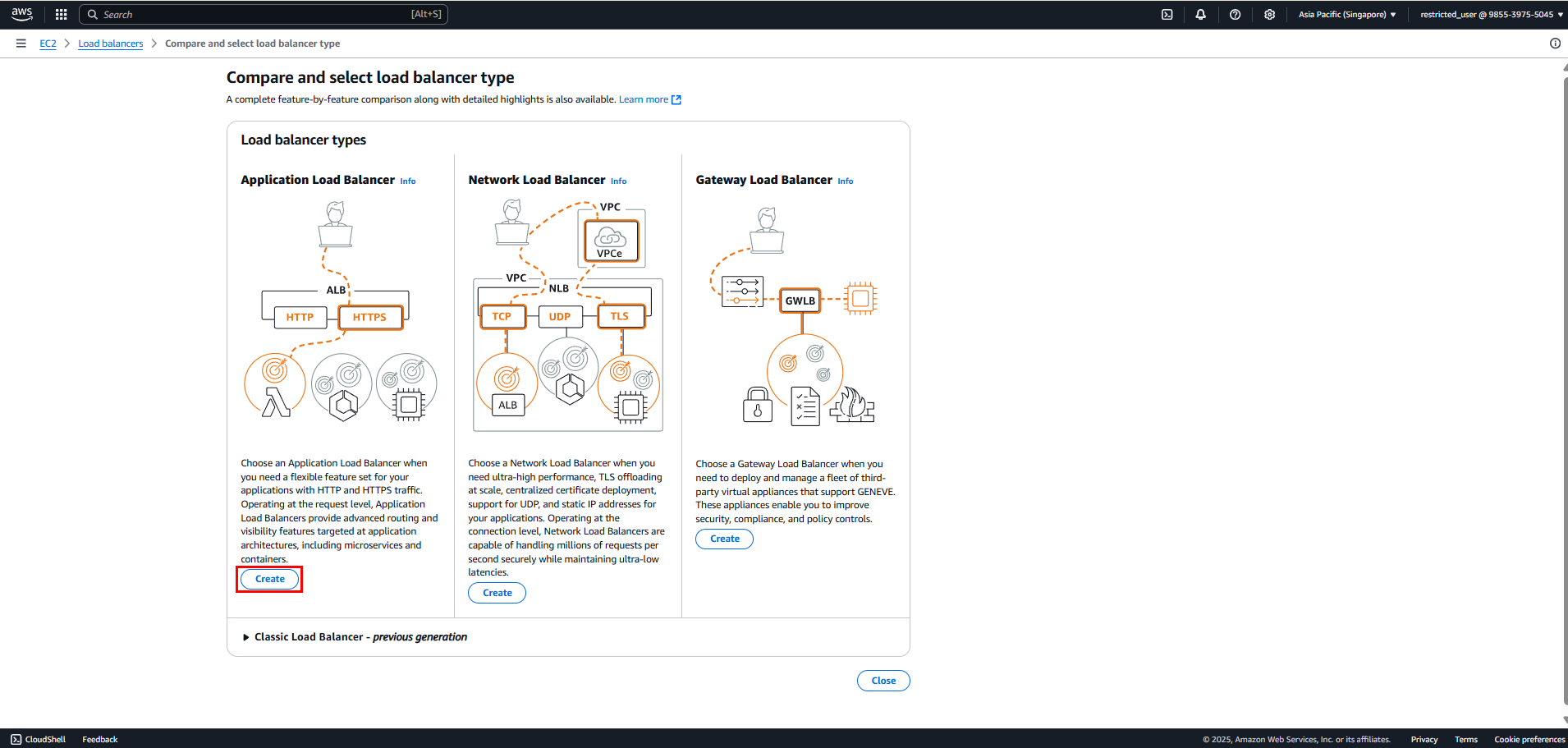
- Choose Application Load Balancer
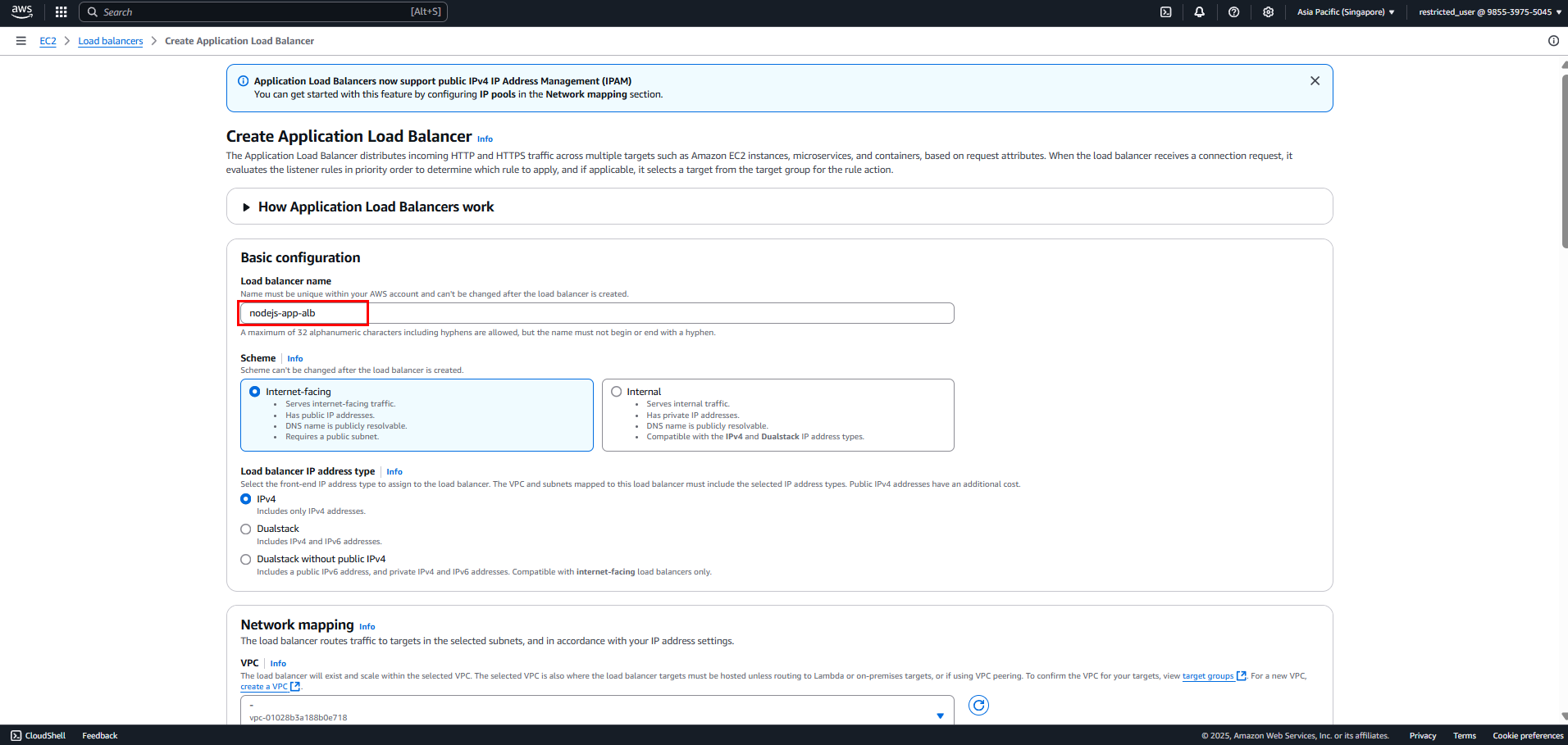
- Basic configuration:
- Name:
nodejs-app-alb - Scheme: Internet-facing
- IP address type: IPv4
- Name:
2.2. Network Configuration
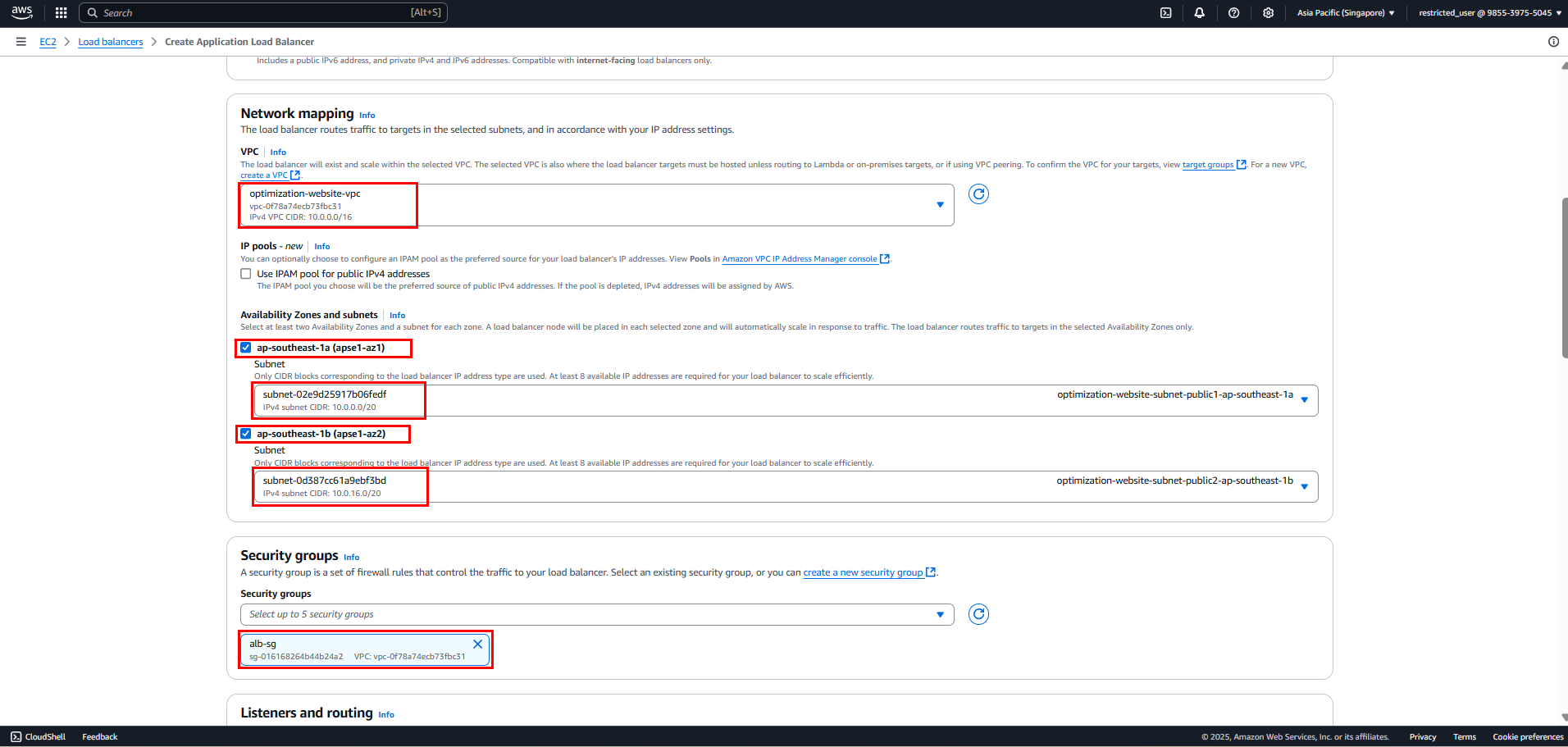
Network mapping:
- VPC: Select created VPC
- Mappings: Select at least 2 AZs and public subnets
Security Groups:
- Select
alb-sg - Verify rules:
- HTTP (80) from 0.0.0.0/0
- HTTPS (443) from 0.0.0.0/0
- Select
2.3. Listeners
- HTTP:80
- Protocol: HTTP
- Port: 80
- Default action: Forward to
nodejs-app-tg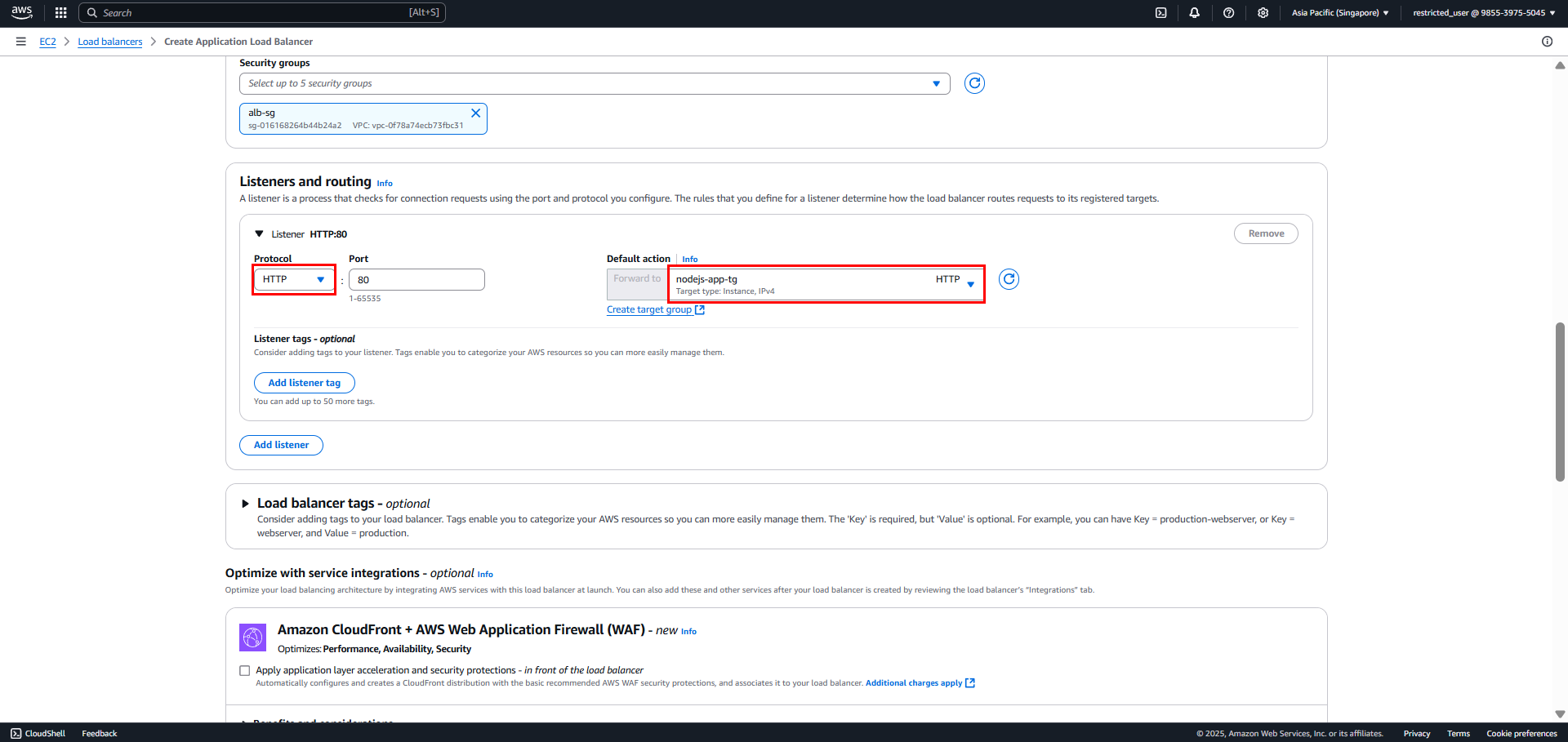
2.4. Review and Create
- Review configuration
- Click “Create load balancer”
Port 9000:
- Traffic flow: Client → ALB (80/443) → Target Group (9000) → EC2 Instance (9000)
- No need to expose port 9000 on ALB
- ALB security group only needs to open port 80