Configure AMI and Launch Template
Create AMI (Amazon Machine Image)
1. Verify EC2 Instance
# Check running application
pm2 status
pm2 list

# Verify configuration files
ls -la /home/ubuntu/nodejs-app/<YOUR_PROJECT_FOLDER>
cat /etc/systemd/system/nodejs-app.service
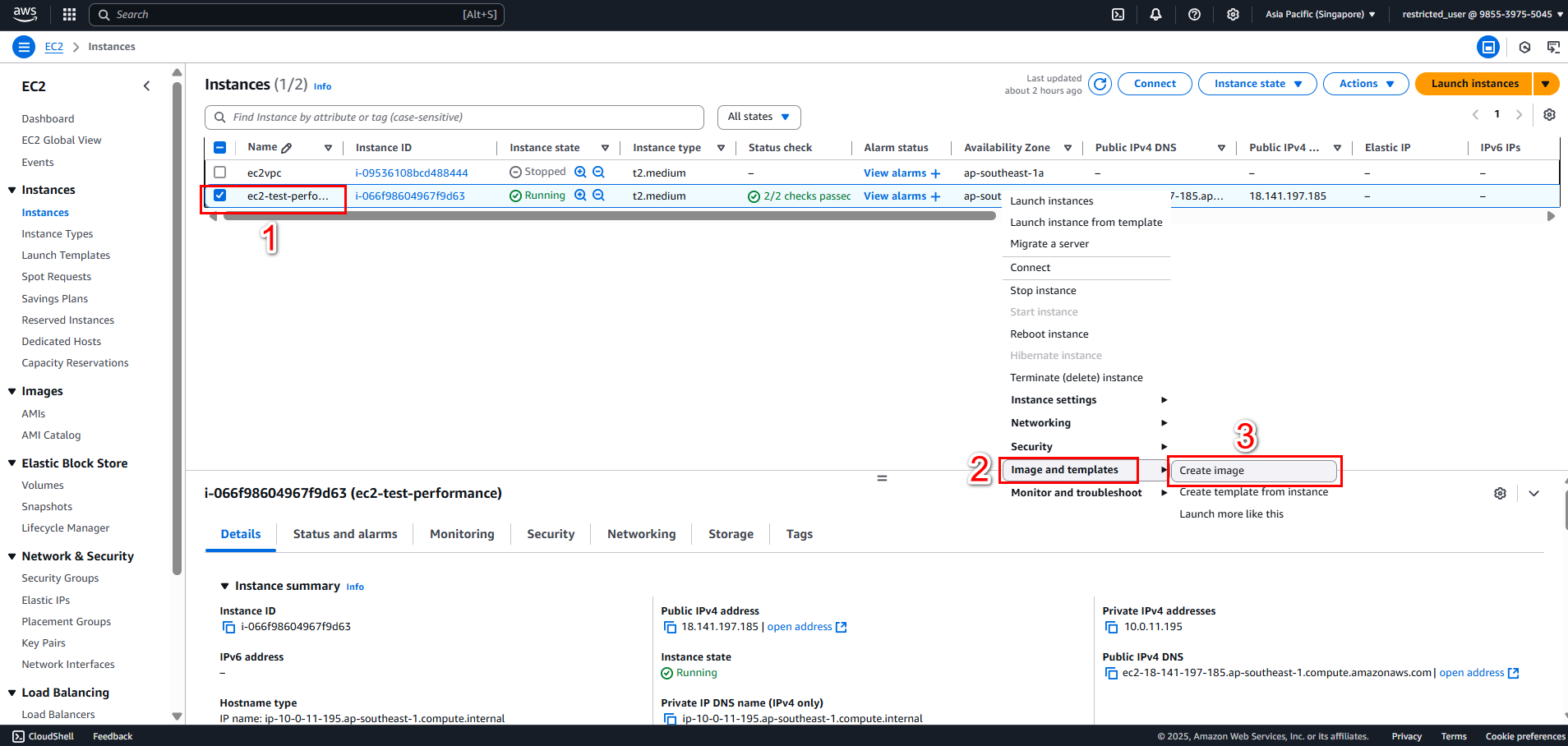
2. Create AMI from EC2 Console
Access EC2 Console
- Select configured instance
- Actions → Image and templates → Create image
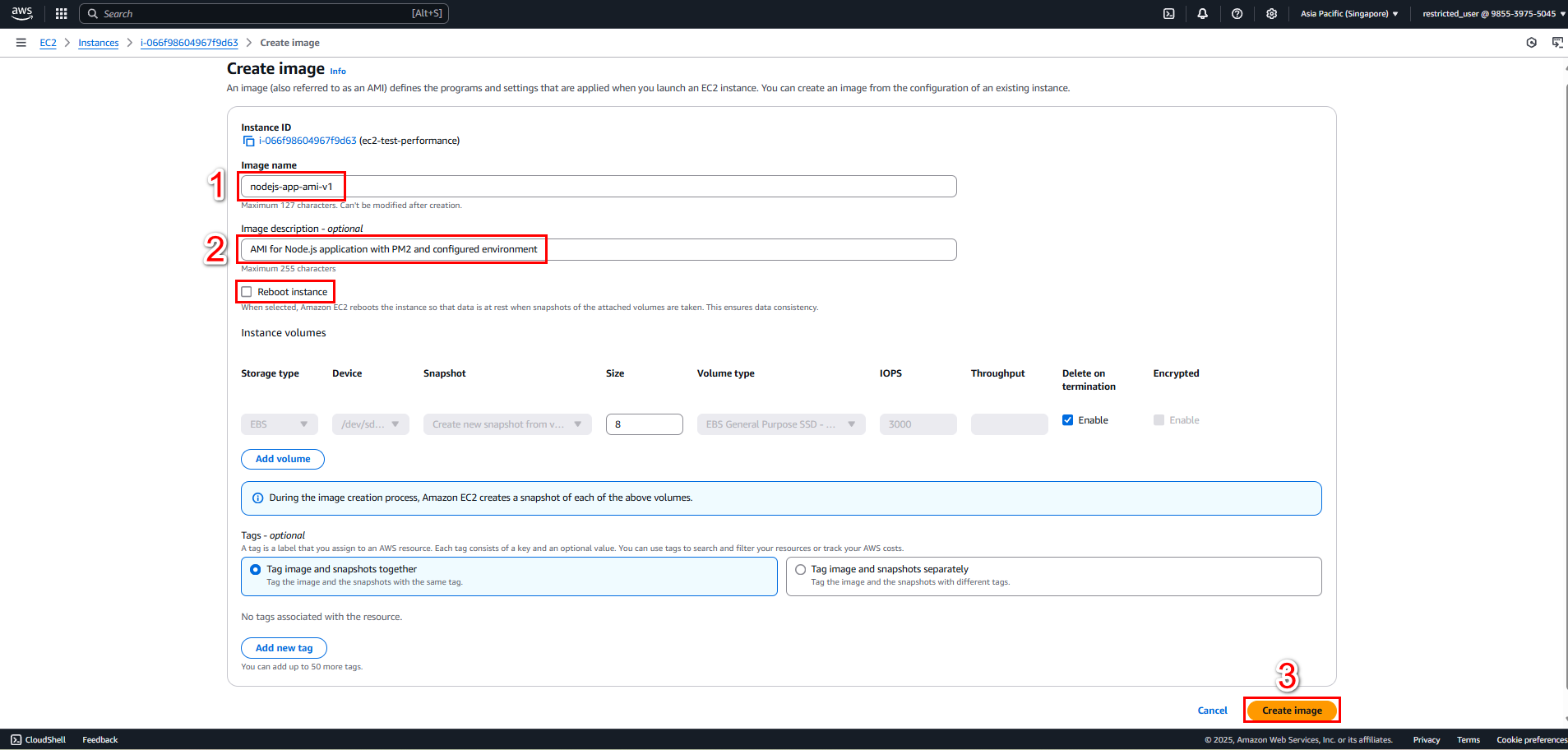
Fill AMI Information
# Basic settings
Image name: nodejs-app-ami-v1
Description: AMI for Node.js application with PM2 and configured environment

# Advanced settings
No reboot: ✓ (Don't restart instance when creating AMI)
3. Verify AMI Status
- Check AMI status
- EC2 Console → Images → AMIs
- Wait for status to change from “pending” to “available”
- Then name the AMI
nodejs-app-ami-v1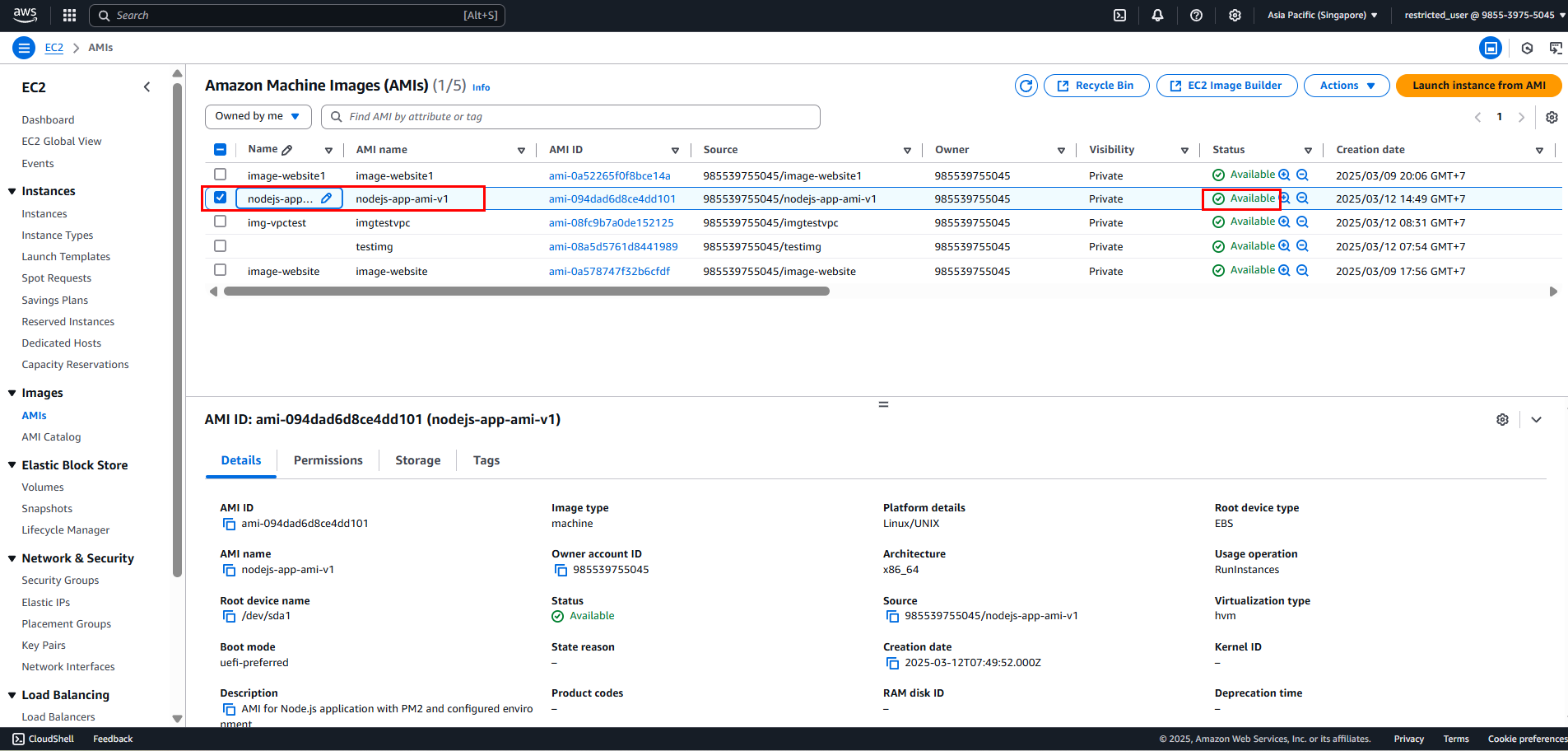
Important Notes:
- Ensure application is running stably before creating AMI
Create Launch Template
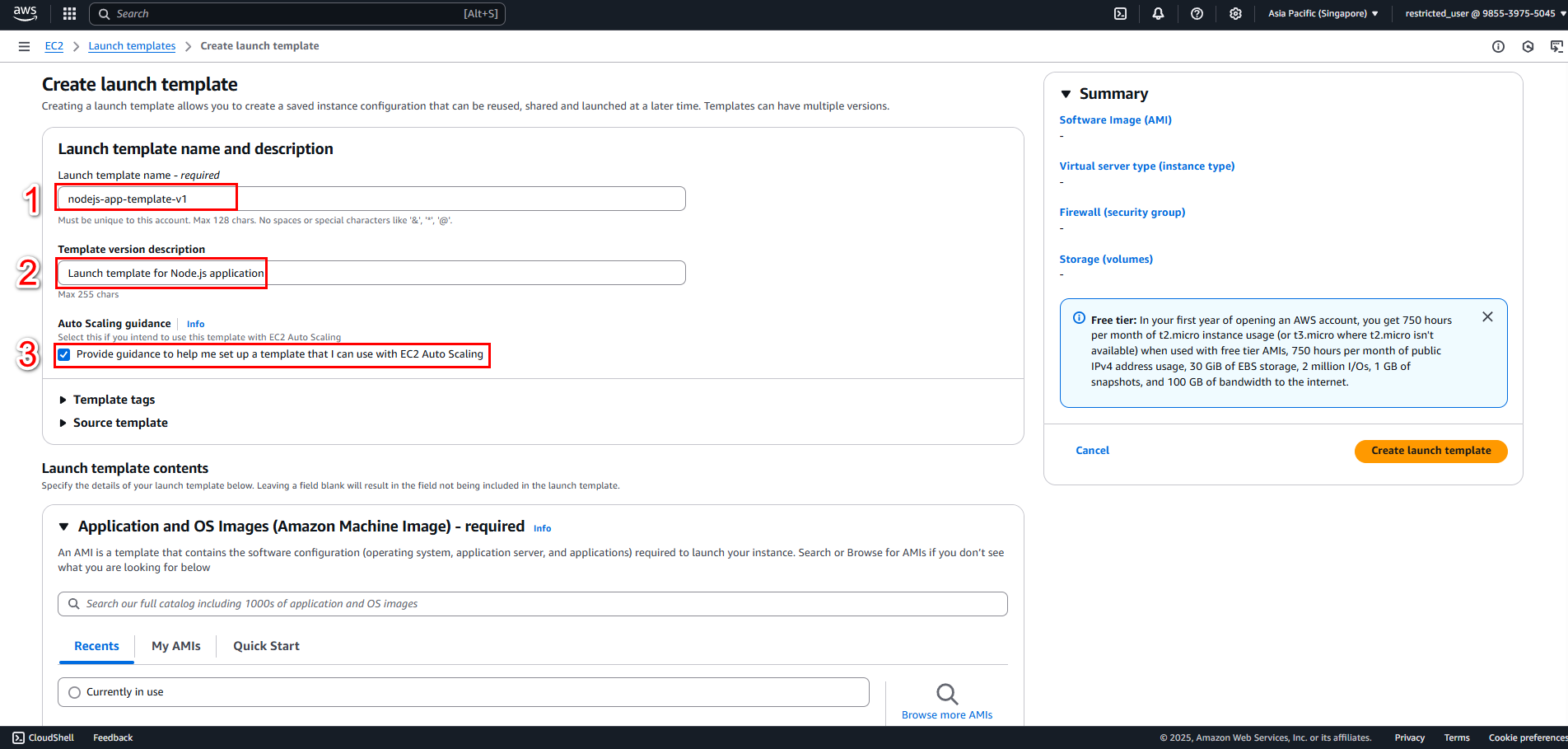
1. Configure Launch Template
- EC2 Console > Launch Templates > Create launch template
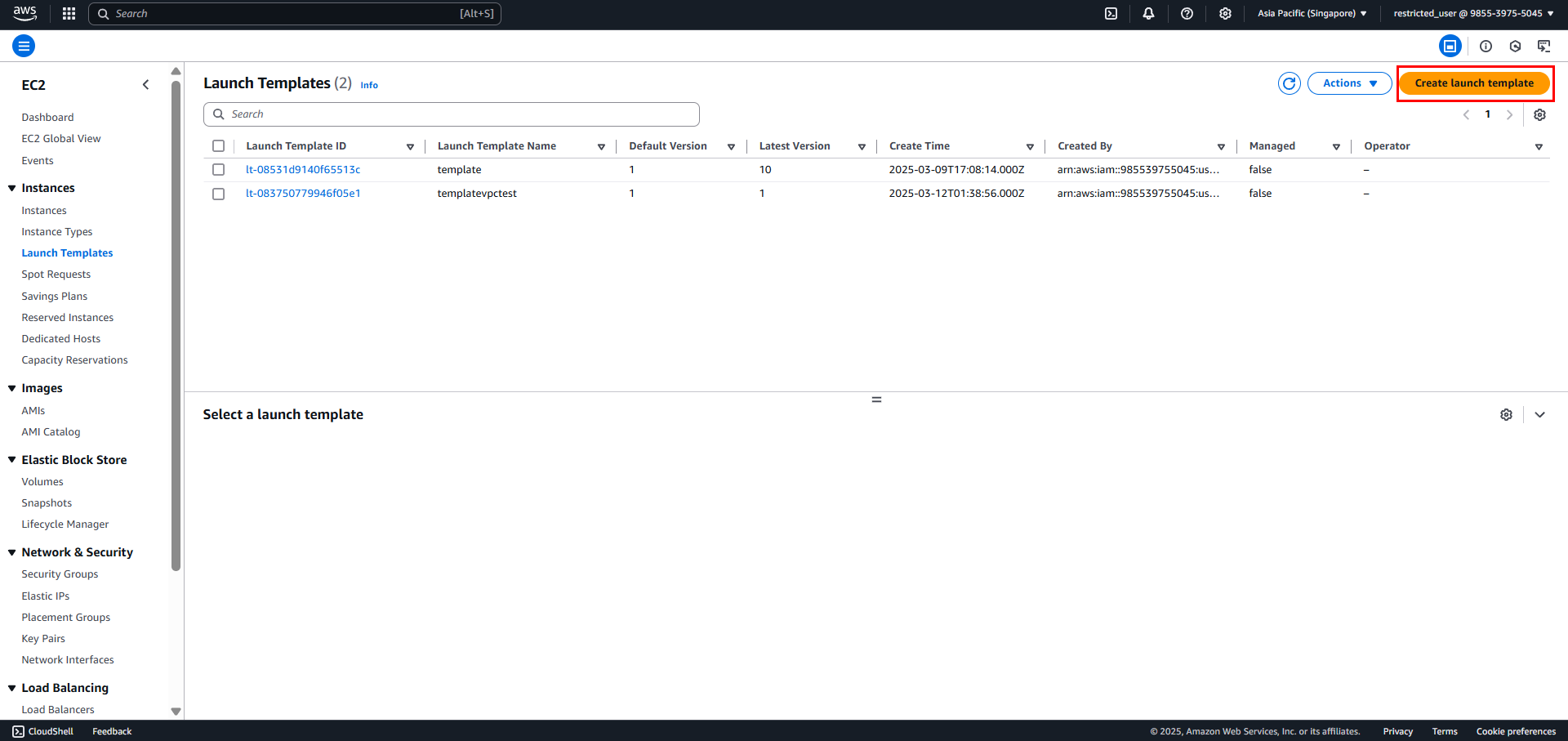
- Basic information:
- Name:
nodejs-app-template-v1 - Description:
Launch template for Node.js application - Auto Scaling guidance: ✓ Check
- Name:
2. Detailed Configuration
Application and OS Images:
- My AMIs: Select created AMI (
nodejs-app-ami-v1)
- My AMIs: Select created AMI (
Instance type:
- t2.medium
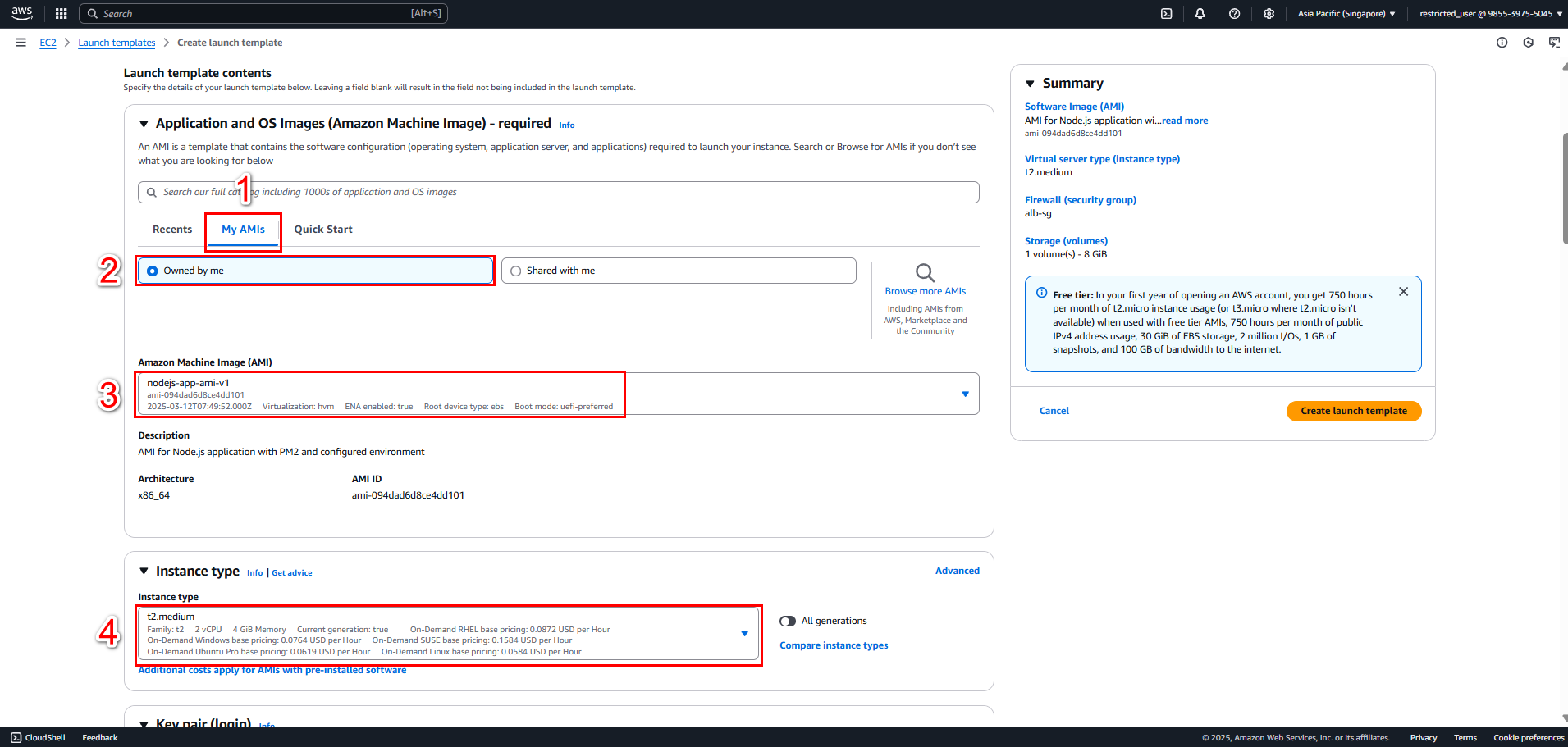
- t2.medium
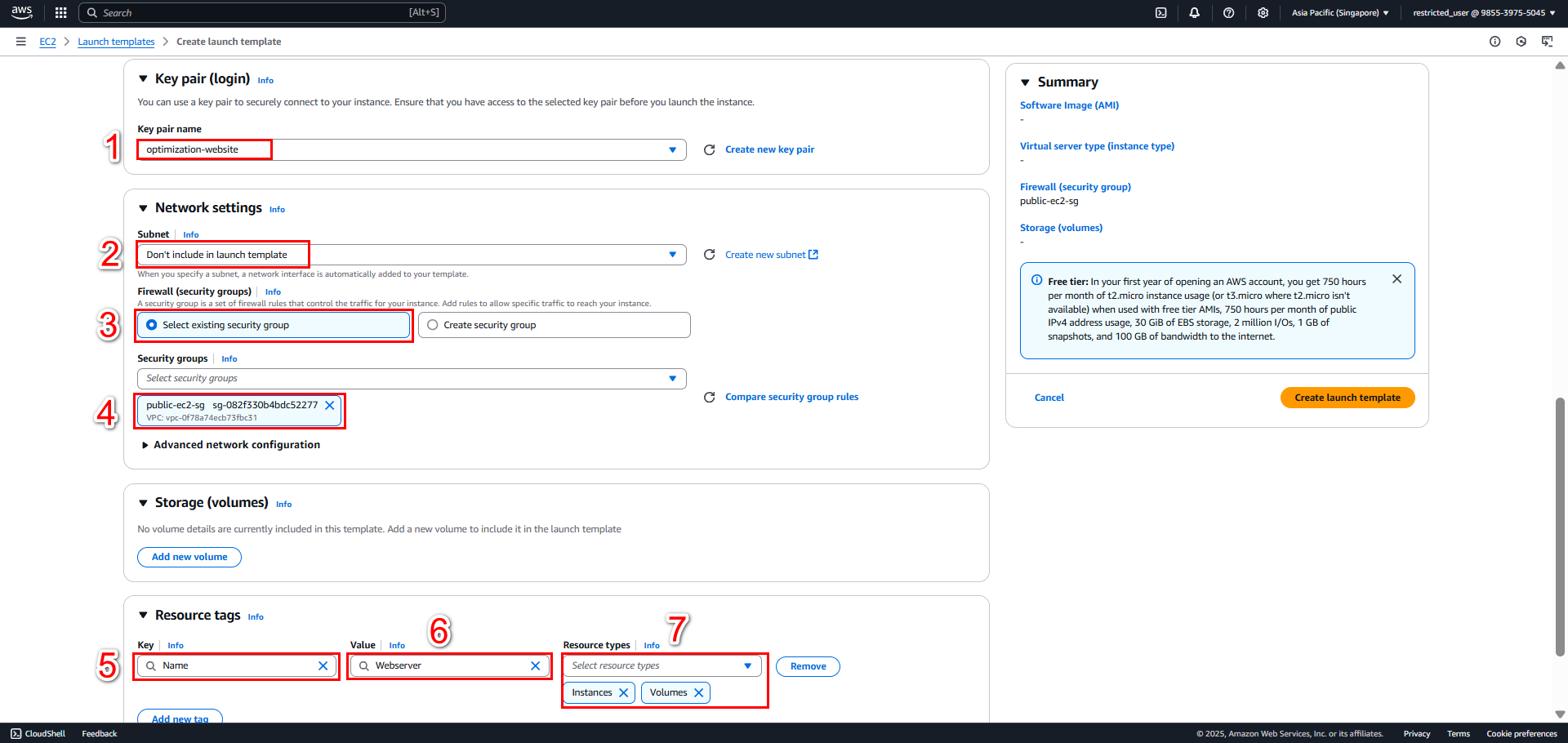
Key pair:
- Select created key pair
Network settings:
- Subnet: Select Don’t include in launch template
- FireWall: Select existing security group
- Common security groups: Select public-ec2-sg created in Security Group
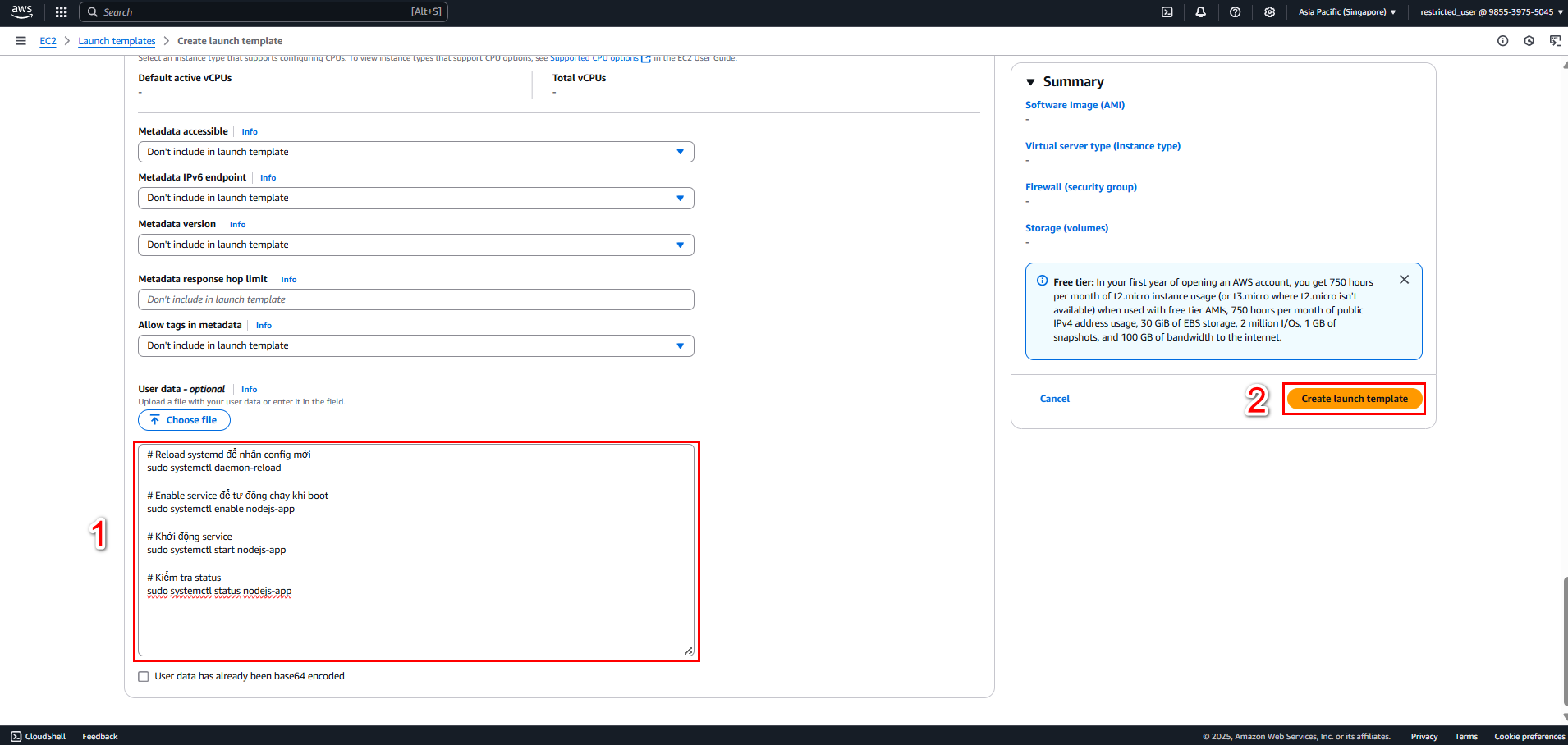
- Advanced details:
- User data:
#!/bin/bash
# Reload systemd to receive new config
sudo systemctl daemon-reload

# Enable service to auto-start on boot
sudo systemctl enable nodejs-app

# Start service
sudo systemctl start nodejs-app

# Check status
sudo systemctl status nodejs-app
Carefully check these points:
- AMI must be completed before creating template
- Security group must have correct inbound rules (ports 9000, 22)
- IAM role must have necessary permissions
- User data script must be accurate
3. Test Launch Template
- Select created template
- Actions > Launch instance from template
- Verify:
- Instance launches successfully
- Node.js application runs correctly
- Can access port 9000
- Terminate test instance after verification