Create S3 Bucket
S3
Amazon Simple Storage Service (Amazon S3) is an object storage service built to store and retrieve any amount of data from anywhere on the web.
Purpose of S3 in workshop
In this workshop, S3 will be used to:
- Store static content: Website images, CSS, JavaScript
Create S3 Bucket
In this section, we will create an S3 bucket to store static resources for the website. Follow these steps:
S3 bucket names must be globally unique. If your chosen name is already taken, try another name.
1. Access S3 Console
- Open your browser and access the Amazon S3 console at https://console.aws.amazon.com/s3/
2. Create New Bucket
- Select Create bucket
- Enter your unique bucket name
3. Configure bucket
- Uncheck “Block all public access” (because we need public access for web assets)
- Confirm that you understand the bucket will be public
- Keep other options as default
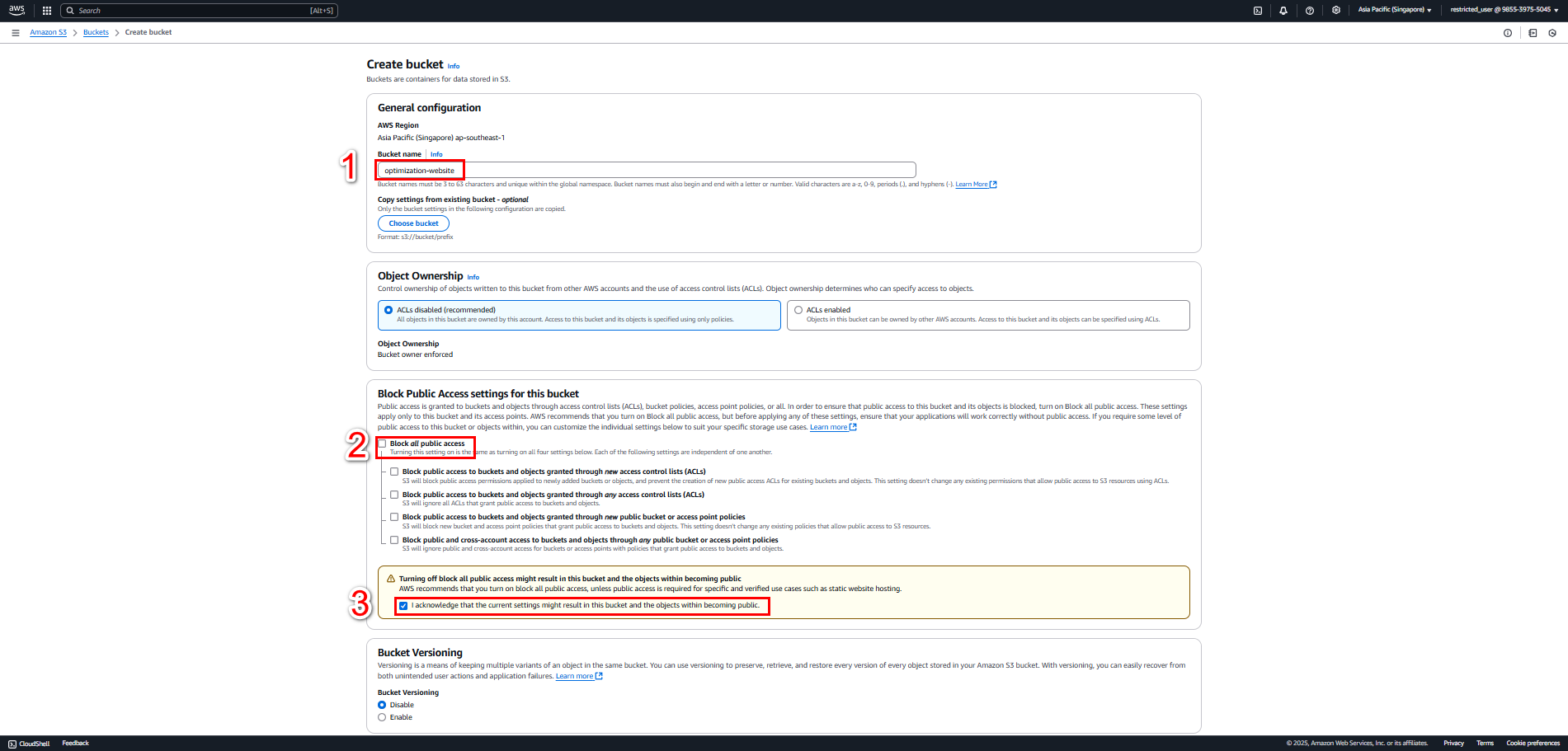
4. Create bucket policy
- After creating the bucket, select your bucket
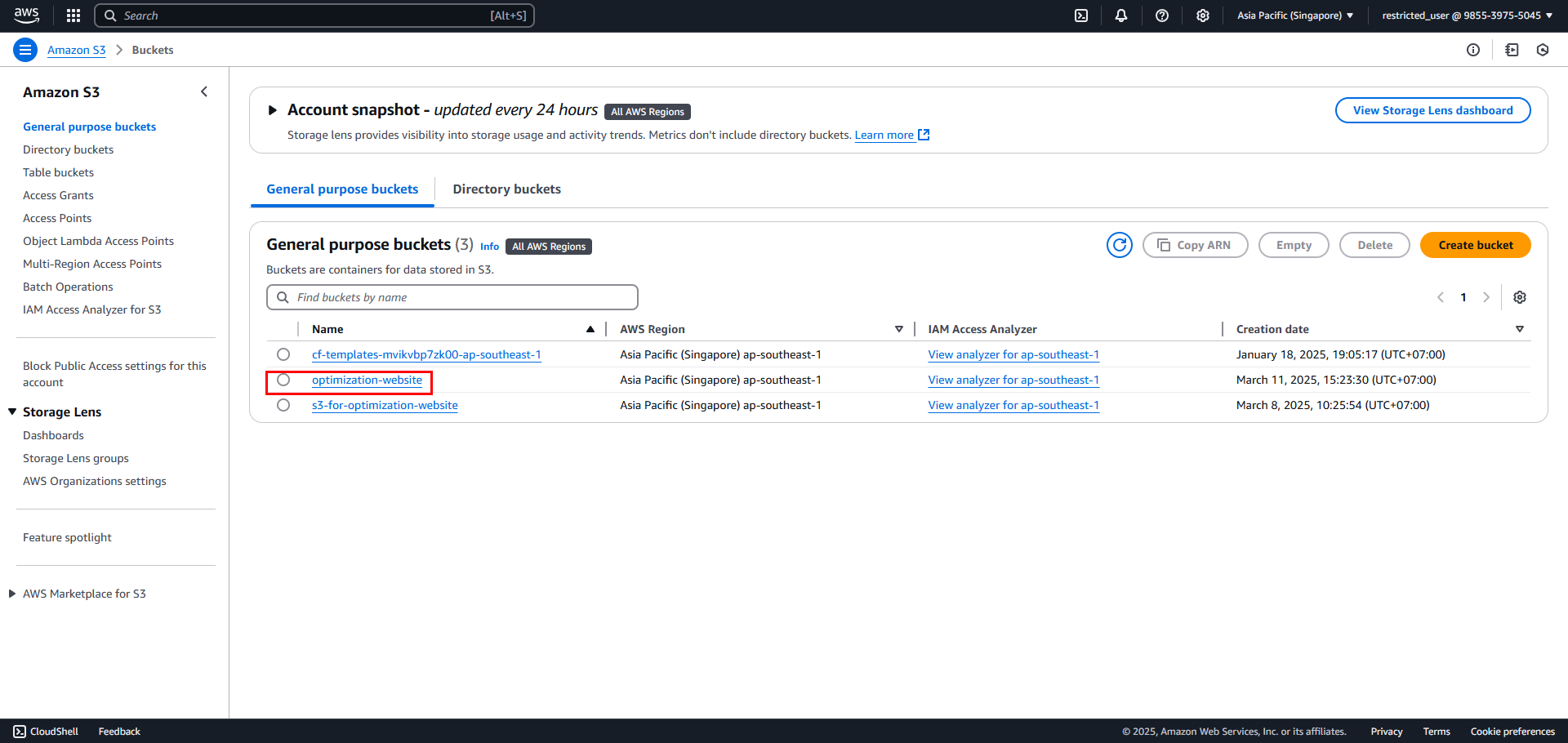
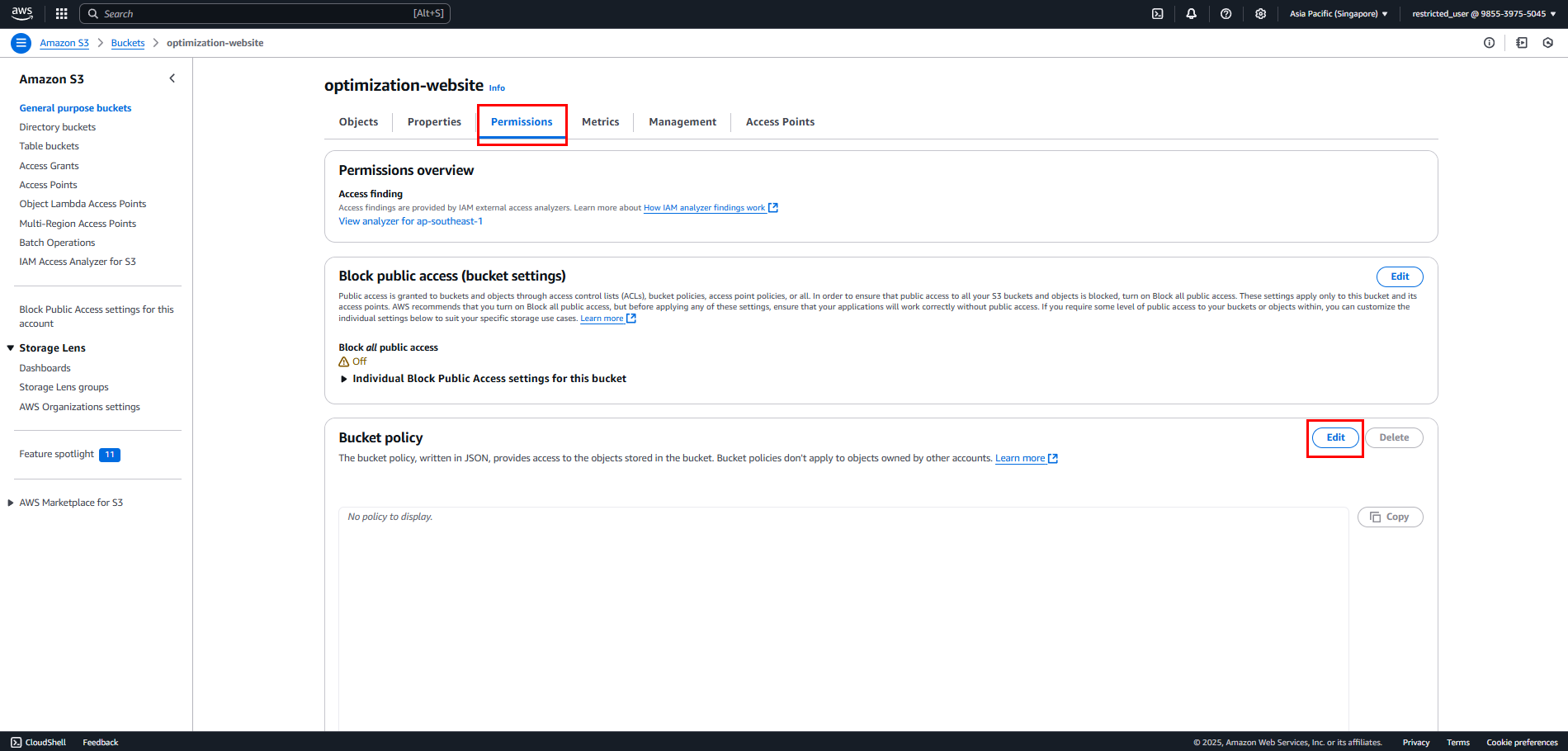
- Go to Permissions tab on the root account
- Select Bucket Policy
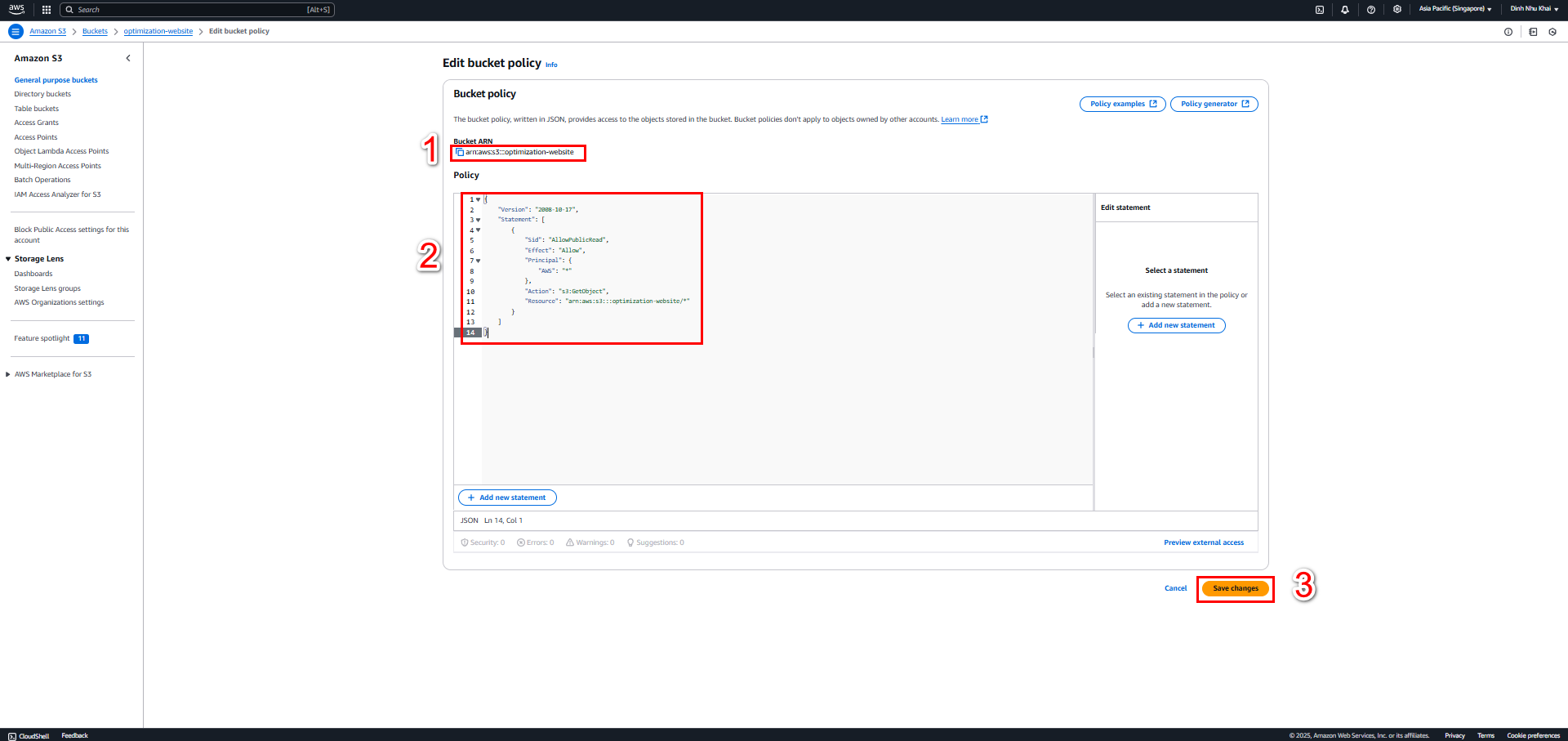
- Add policy to allow public access:
{
    "Version": "2008-10-17",
    "Statement": [
        {
            "Sid": "AllowPublicRead",
            "Effect": "Allow",
            "Principal": {
                "AWS": "*"
            },
            "Action": "s3:GetObject",
            "Resource": "arn:aws:s3:::optimization-website/*"
        }
    ]
}
5. Upload files
- Go to Objects tab
- Select Upload
- Drag and drop files or select Add files
- Select Upload
6. Verify access
- Select the uploaded file
- Copy Object URL and open in browser
- If you can see the file content, you’ve configured successfully
Ensure to only allow public access for files necessary for the website. Don’t make the entire bucket public if it contains sensitive data.
Connect S3 with Node.js
- Install AWS SDK for Node.js:
npm install aws-sdk
- Example code for connecting and using S3:
const AWS = require('aws-sdk');

// Configure AWS
AWS.config.update({
    accessKeyId: 'YOUR_ACCESS_KEY',
    secretAccessKey: 'YOUR_SECRET_KEY',
    region: 'ap-southeast-1'
});

const s3 = new AWS.S3();

// Upload file
async function uploadFile(file, bucket, key) {
    const params = {
        Bucket: bucket,
        Key: key,
        Body: file
    };

    try {
        const data = await s3.upload(params).promise();
        console.log('File uploaded successfully:', data.Location);
        return data.Location;
    } catch (err) {
        console.error('Error uploading file:', err);
        throw err;
    }
}

// Download file
async function getFile(bucket, key) {
    const params = {
        Bucket: bucket,
        Key: key
    };

    try {
        const data = await s3.getObject(params).promise();
        return data.Body;
    } catch (err) {
        console.error('Error getting file:', err);
        throw err;
    }
}
Best Practices when using S3:
- Always use environment variables for credentials
- Implement retry logic for upload/download
- Use presigned URLs for temporary access
- Implement proper error handling
- Should use AWS SDK v3 for new Node.js projects