Restricting Access with IAM Service
Best practice: avoid using Root User. Instead, create IAM Users with just enough permissions to access resources for easier management and to avoid security risks.
In this section, we will create an IAM User with Full Access permissions for these services:
- Amazon EC2
- Amazon S3
- Auto Scaling
- Application Load Balancer
1. Access AWS IAM Management Console
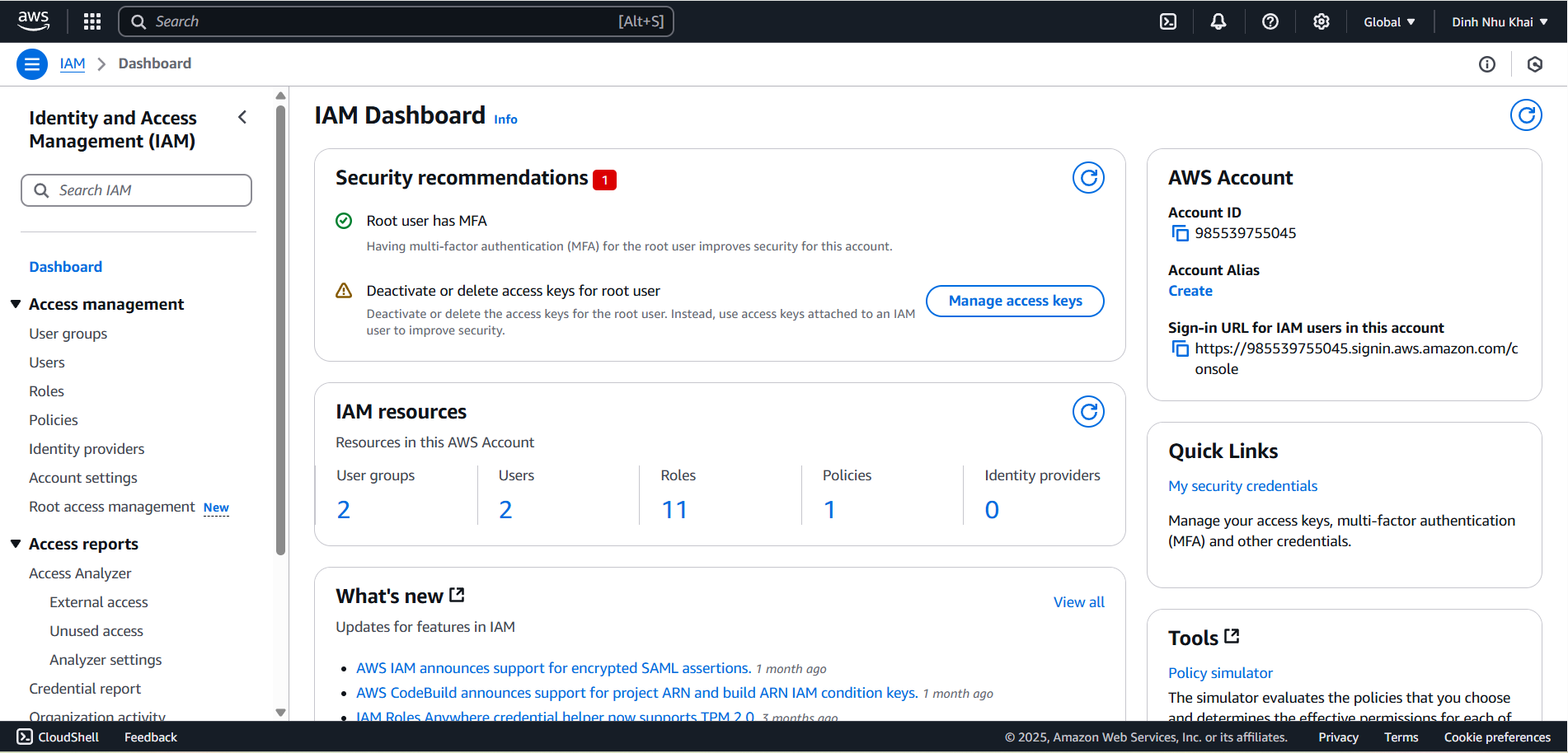
2. Create User and Assign Full Access Permissions
2.1. Access Users in IAM Console
2.2. Select Create user
2.3. At Step 1 - Specify user details
- Set username to
restricted_user - Select Provide user access to the AWS Management Console
- Select I want to create an IAM user
- Set custom password to
Restricted_user_for_workshop - Select Next
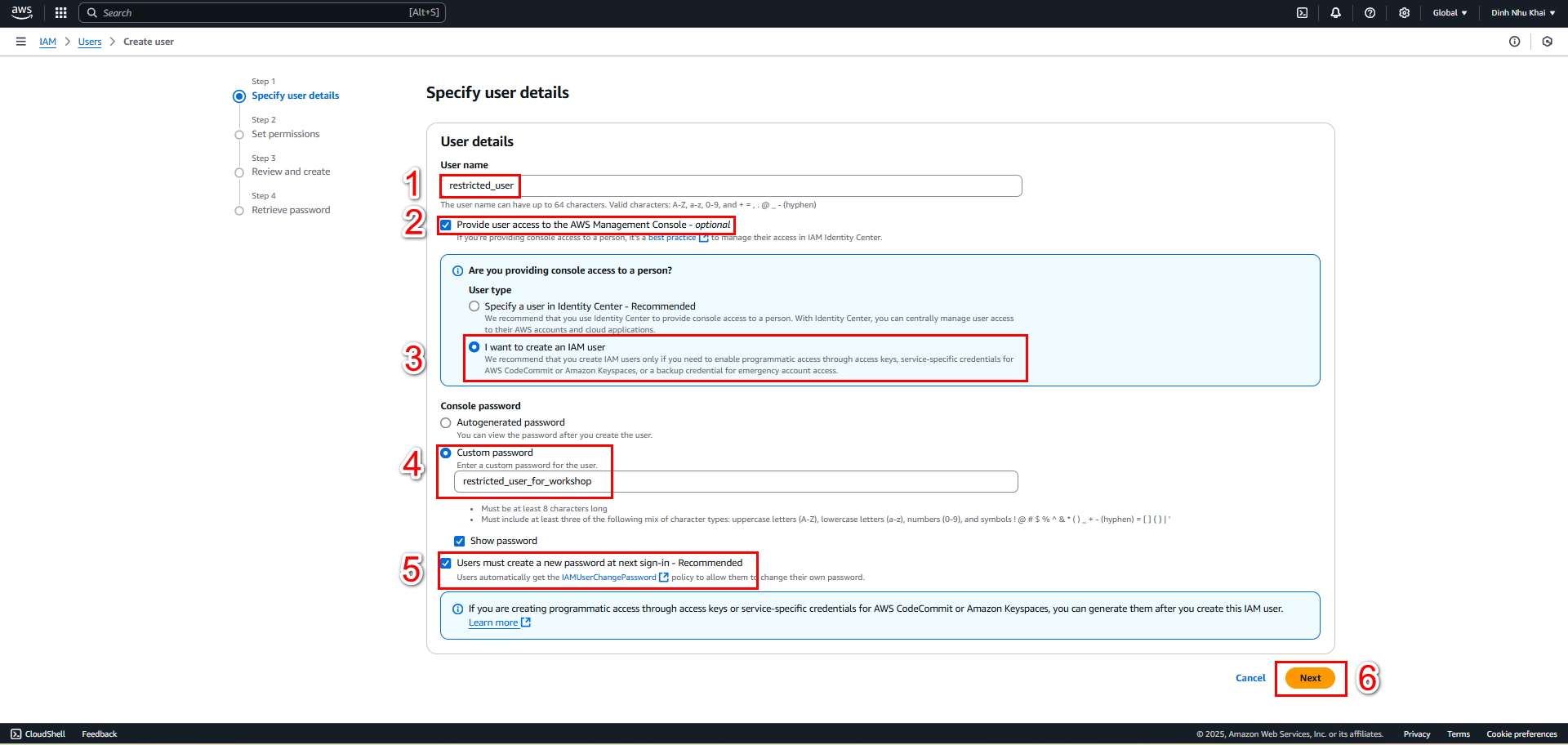
2.4. At Step 2 - Set permissions
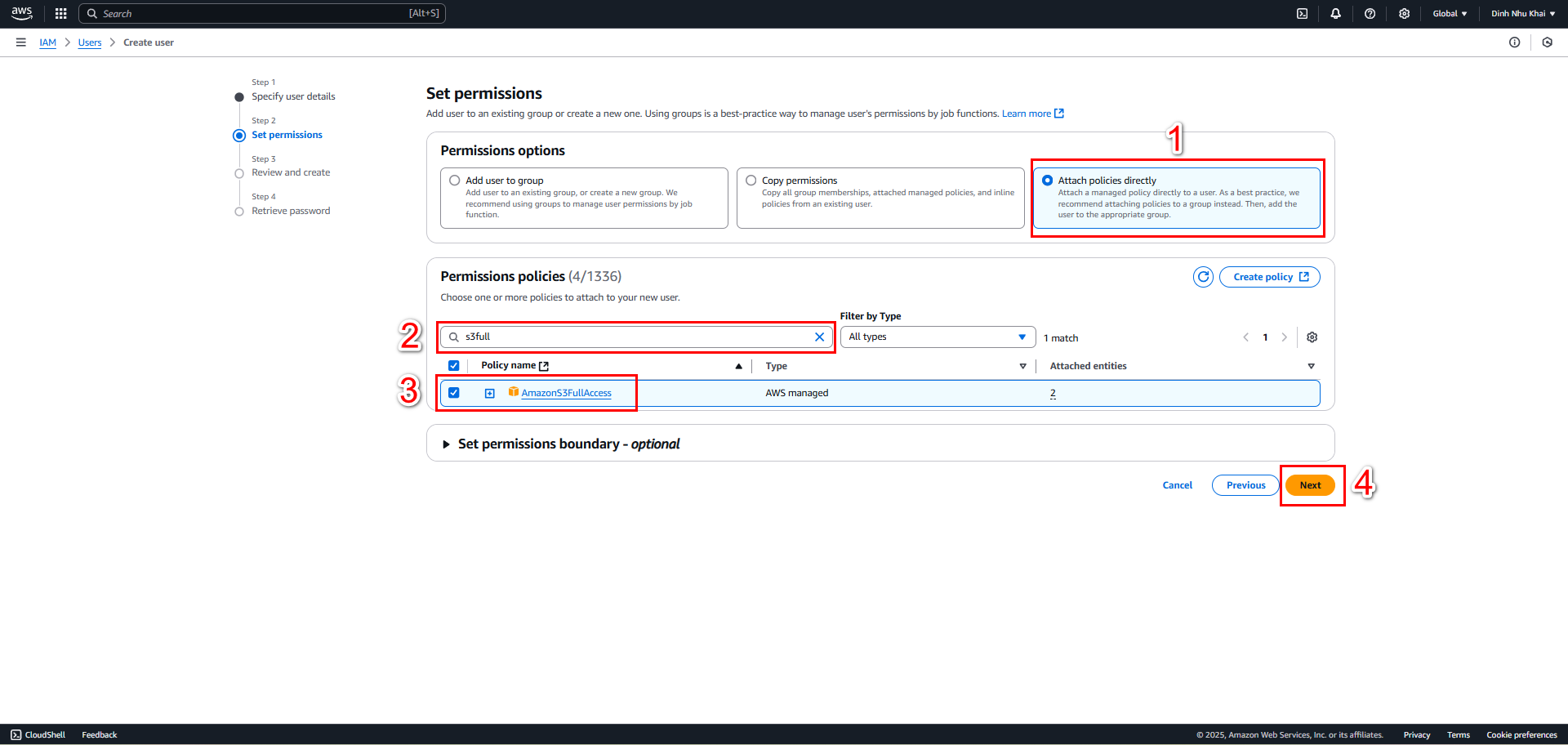
Select Attach policies directly
Search and select these policies:
- AmazonEC2FullAccess - Full access to EC2
- AmazonS3FullAccess - Full access to S3
- AutoScalingFullAccess - Full access to Auto Scaling
- ElasticLoadBalancingFullAccess - Full access to Load Balancer
Create additional policy for EC2 Instance Connect:
- This policy will help us access EC2
- Select Create policy
- Select JSON tab
- Paste the following policy:
{
    "Version": "2012-10-17",
    "Statement": [
        {
            "Effect": "Allow",
            "Action": "ec2-instance-connect:SendSSHPublicKey",
            "Resource": "*"
        }
    ]
}
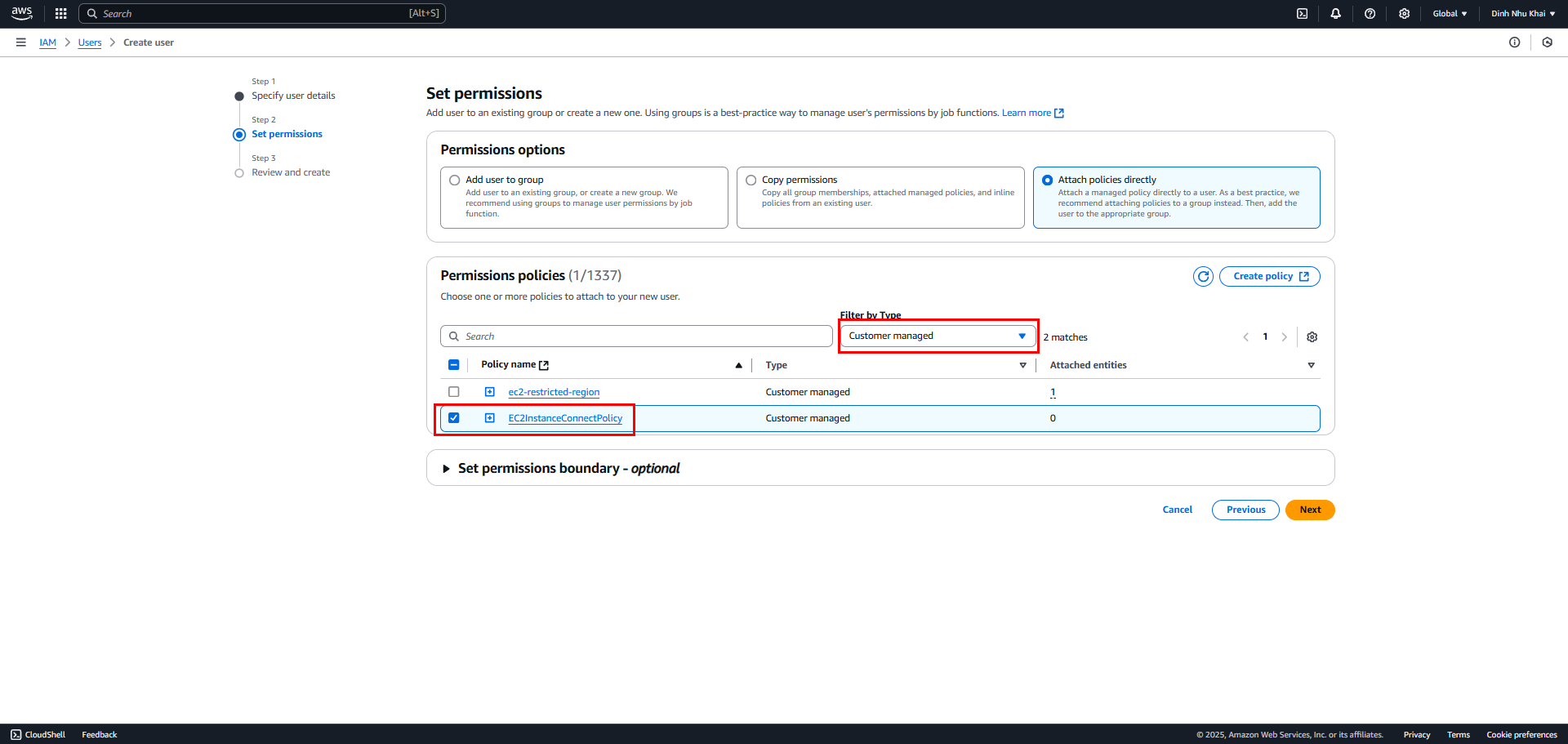
- Name the policy: EC2InstanceConnectPolicy
- Select Create policy
- Return to attach policy screen and select the newly created policy
- Select Next
- Below is how to filter to the policy we created
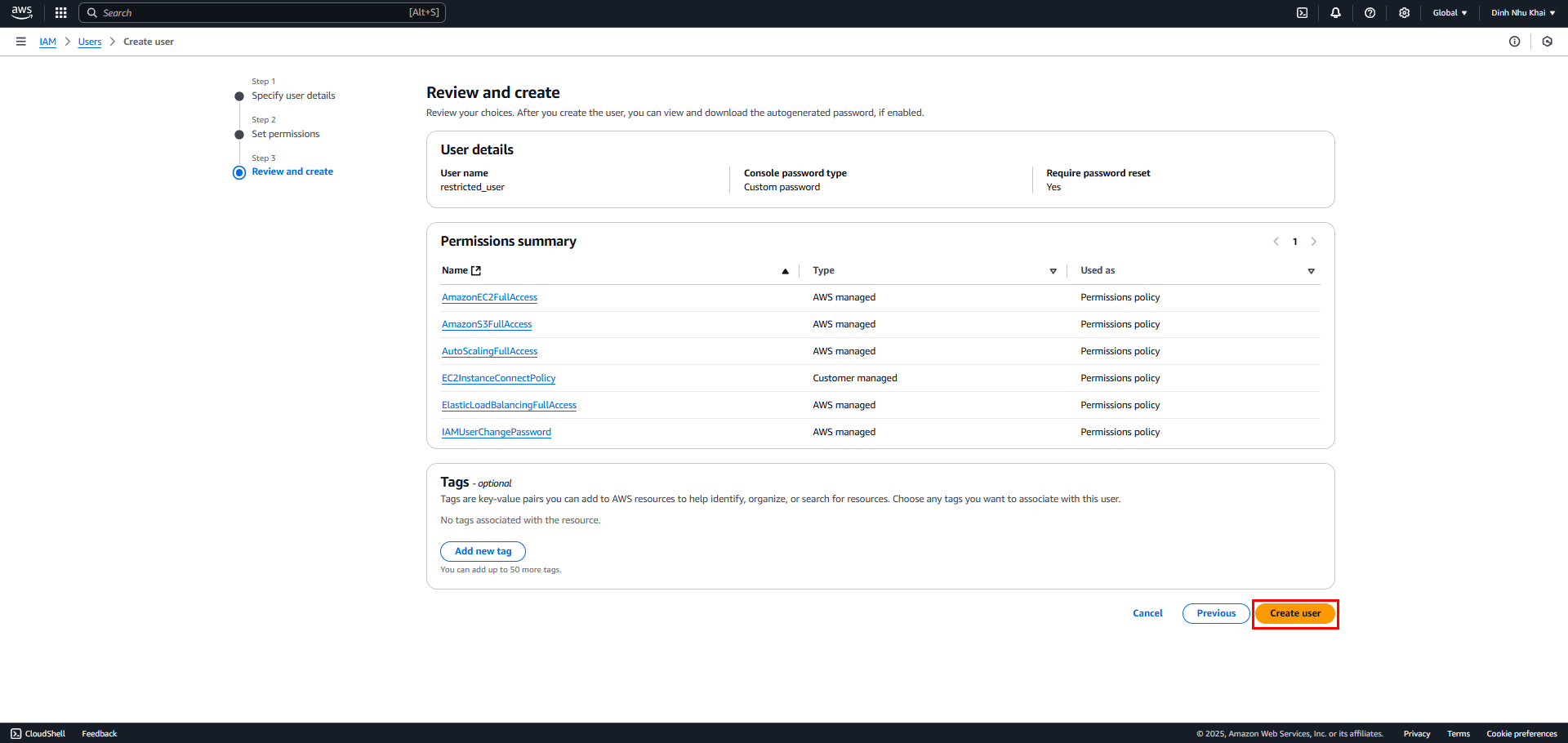
2.5. At Step 3 - Review and Create
- Review user information and attached permissions
- Select Create user
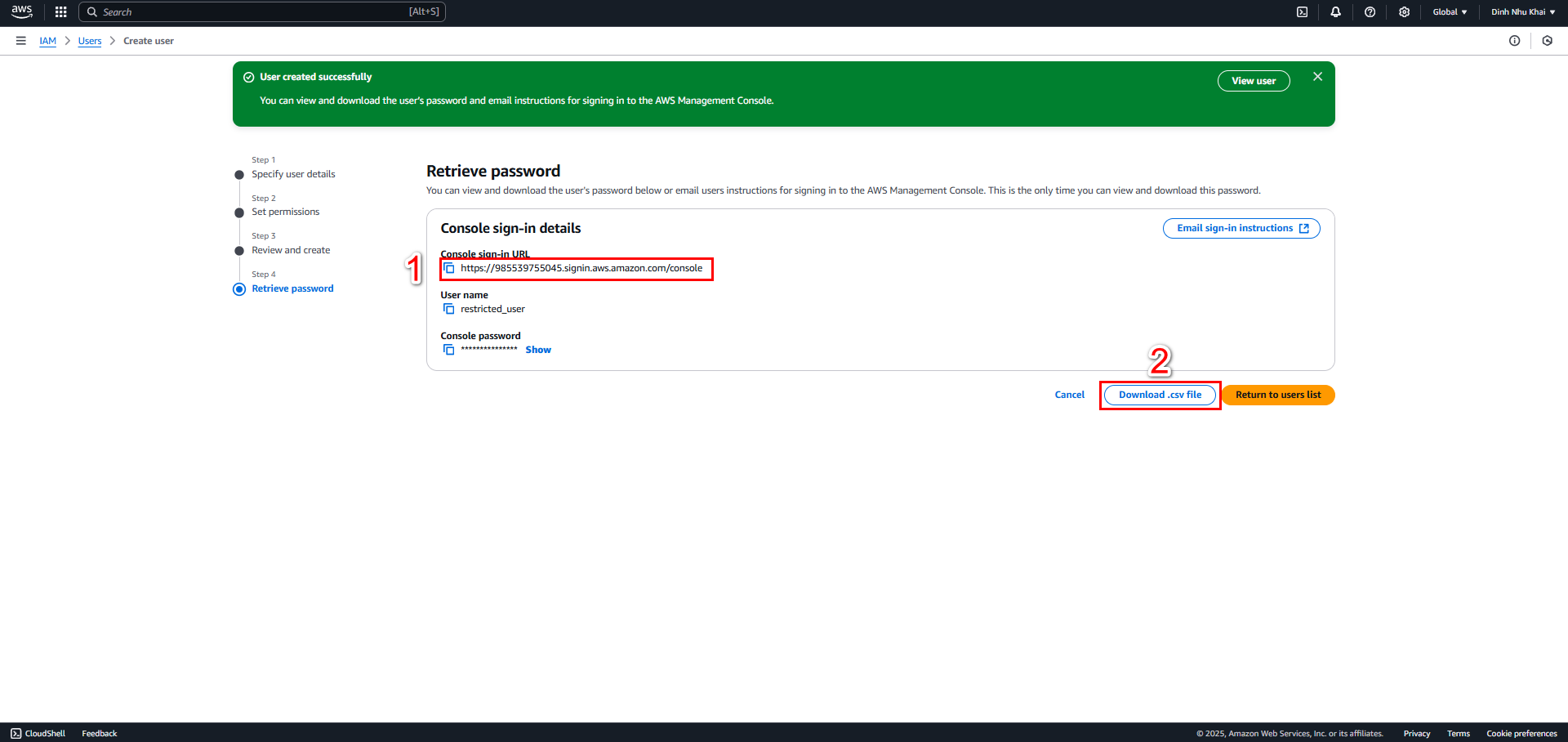
2.6. At Step 4 - Retrieve password
- Save or download the .csv containing login information
- Copy the Console sign-in URL
3. Login and Authentication
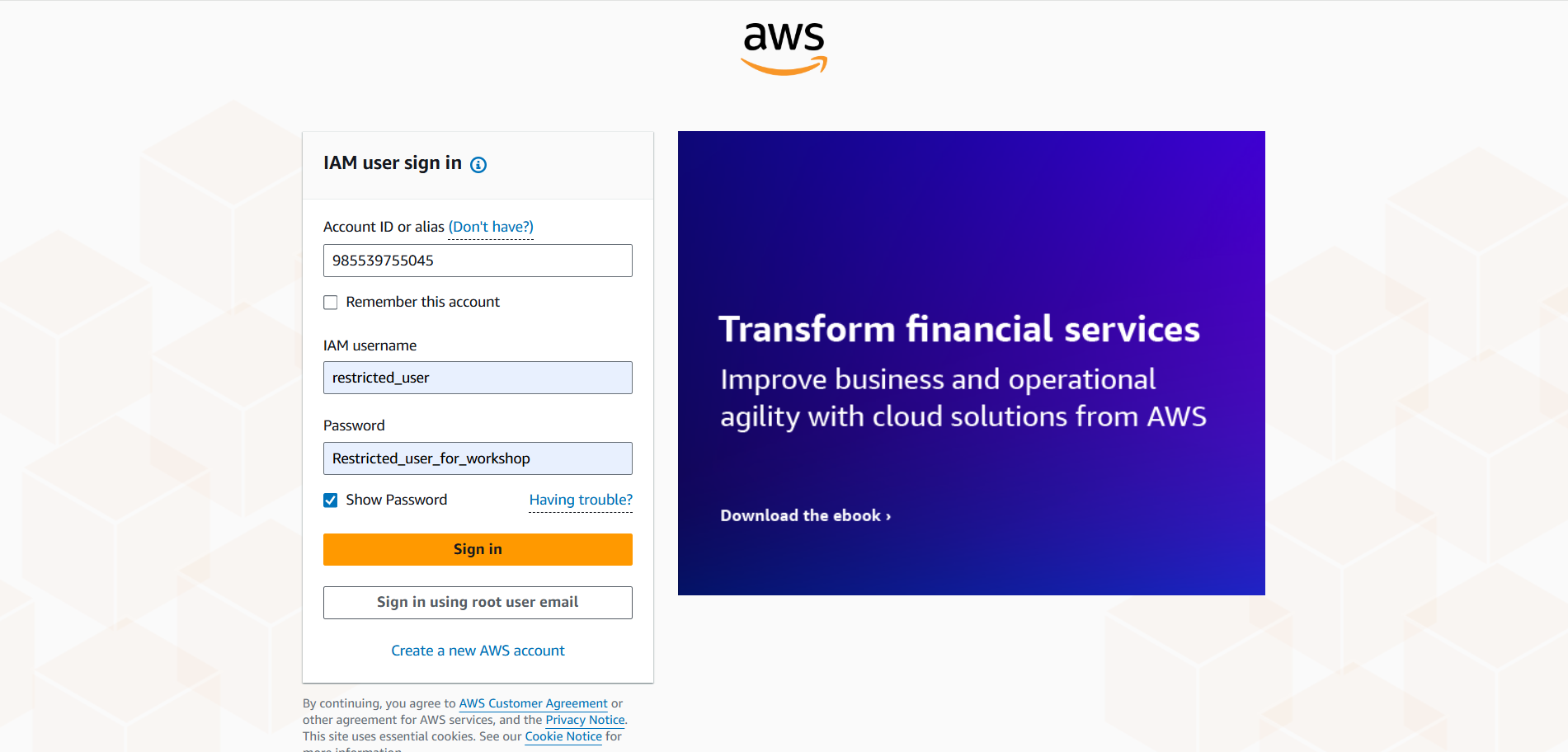
3.1. Login as IAM User
- Use the copied sign-in URL
- Login with username and password
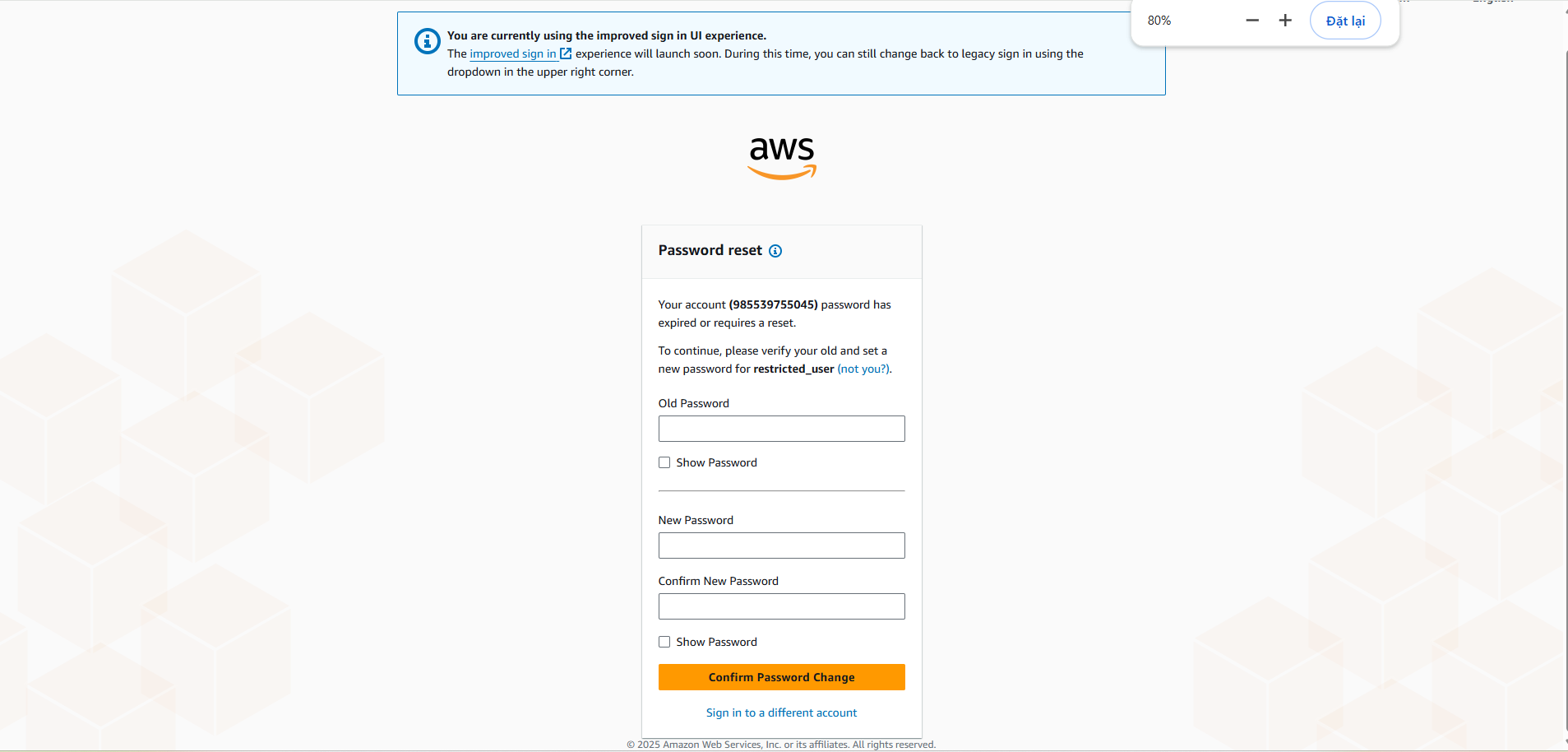
3.2. Change password on first login
3.3. Verify access to services
- Verify EC2 service
- Verify S3 service
- Verify Auto Scaling service
- Verify Load Balancer service
Security notes:
- Protect login credentials carefully
- Enable MFA for the account
- Change passwords periodically