6.3. Setup and configure environment and project
In the previous section, we created an EC2 instance. Now, we will connect to this EC2 instance to deploy our application.
Connect to EC2 instance
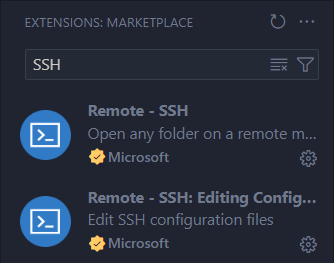
First, we need to connect to the EC2 instance via SSH. We will use VSCode, so make sure you have installed these two extensions beforehand.
Press Ctrl + Shift + P to open the Command Palette and select Remote-SSH: Add New SSH Host …
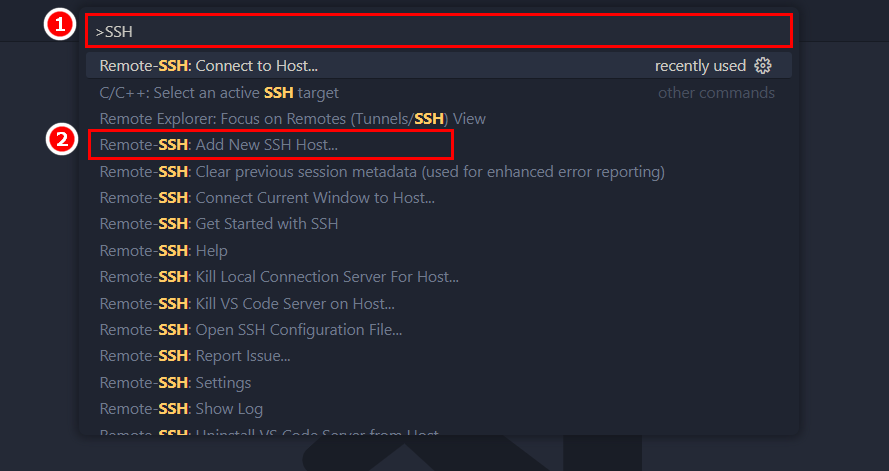
Then follow the steps below.
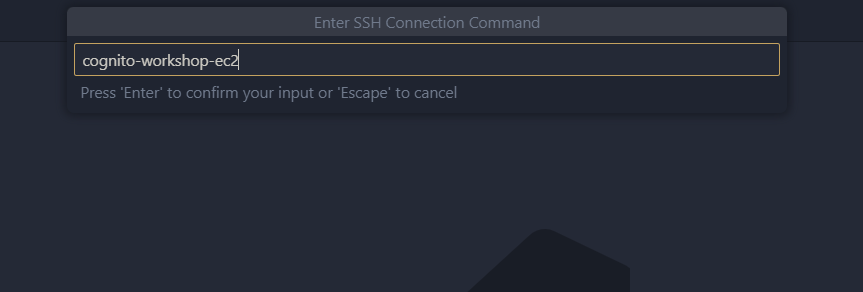
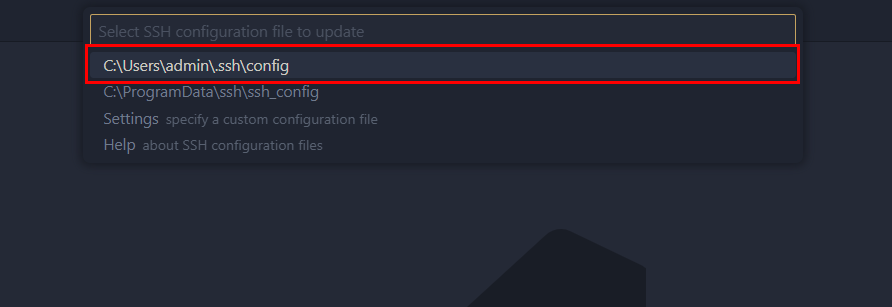
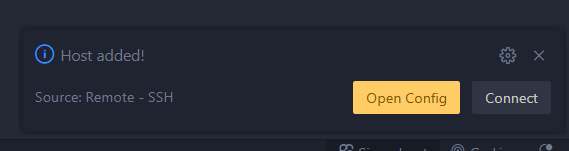
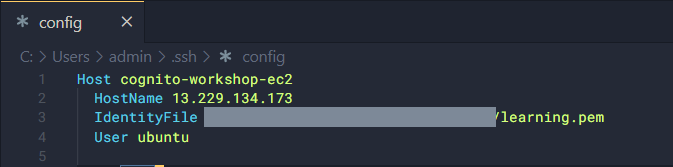
This will be your SSH config file. Add the important information:
- HostName: the Public IPv4 address of the EC2 instance.
- IdentityFile: path to the SSH key file.
- User: the username to access the EC2 instance; default is ubuntu.
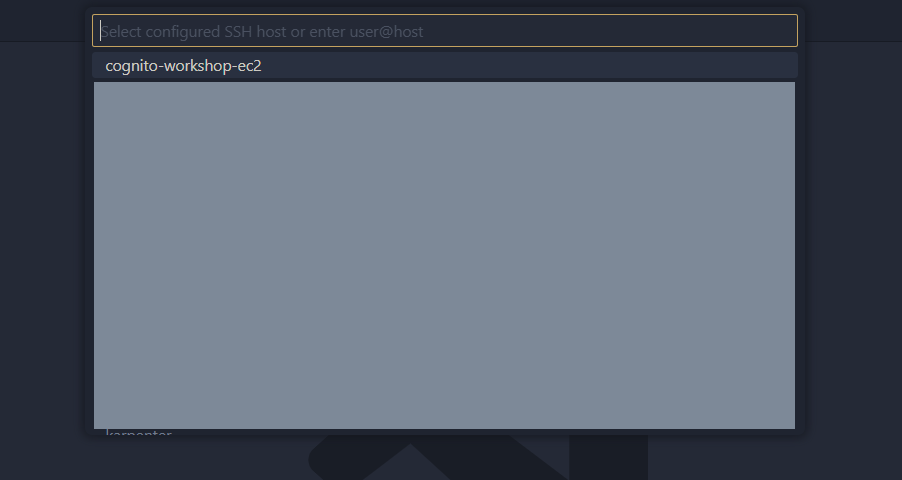
Open the Command Palette again and select Remote-SSH: Connect to Host …
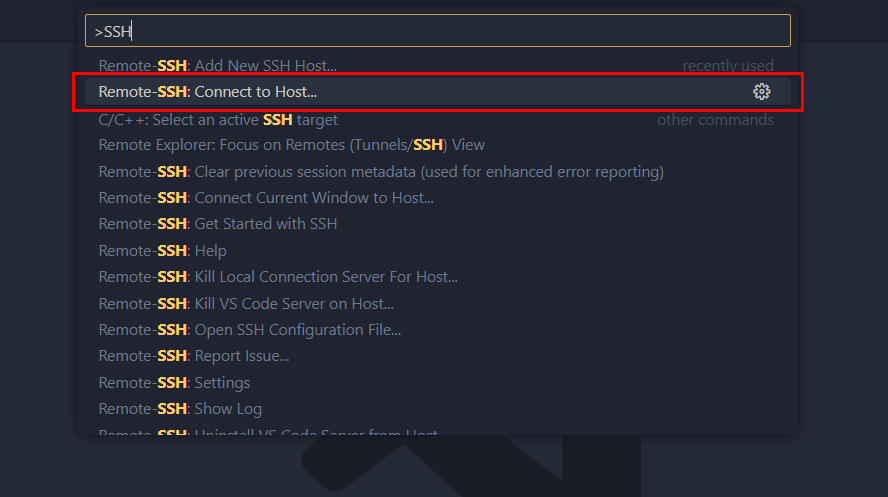
Select the profile you just configured.
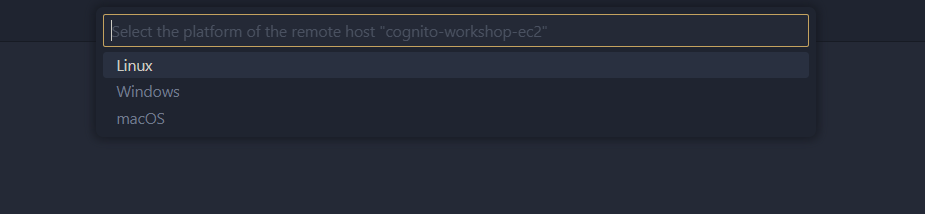
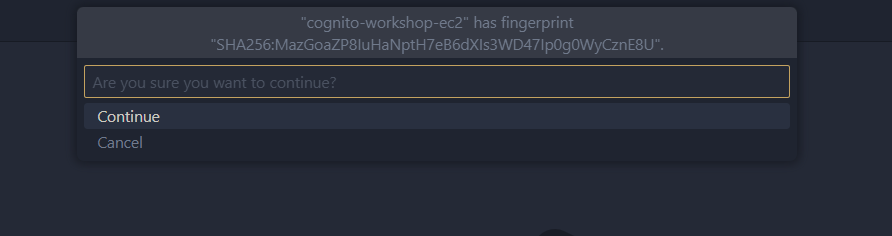
Then choose Linux and click Continue.
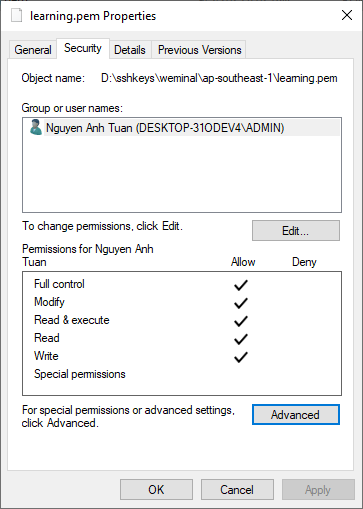
If you encounter a Permission Denied (publickey) error, it is likely because your downloaded PEM key is too open, meaning multiple users on your PC can read it. Restrict the access so only your user can read it. This should fix the issue.
Reconnect, and it should work.
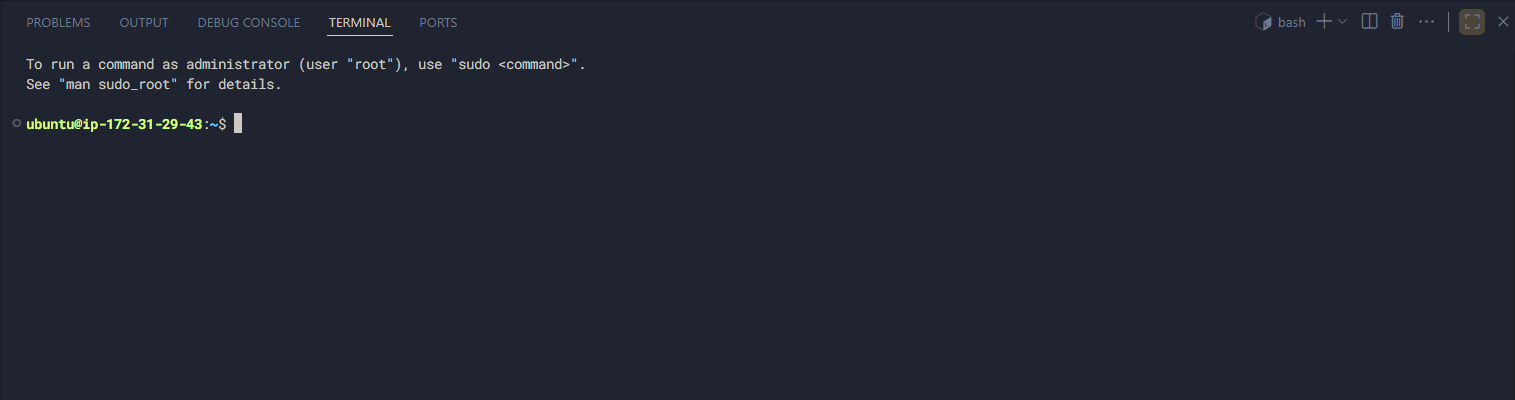
Push code to Git
Back on your local machine, we will push the two codebases to personal Git repositories.
First, for TypeScript:
git add .
git commit -m "First commit"
git branch -M main
git push origin main
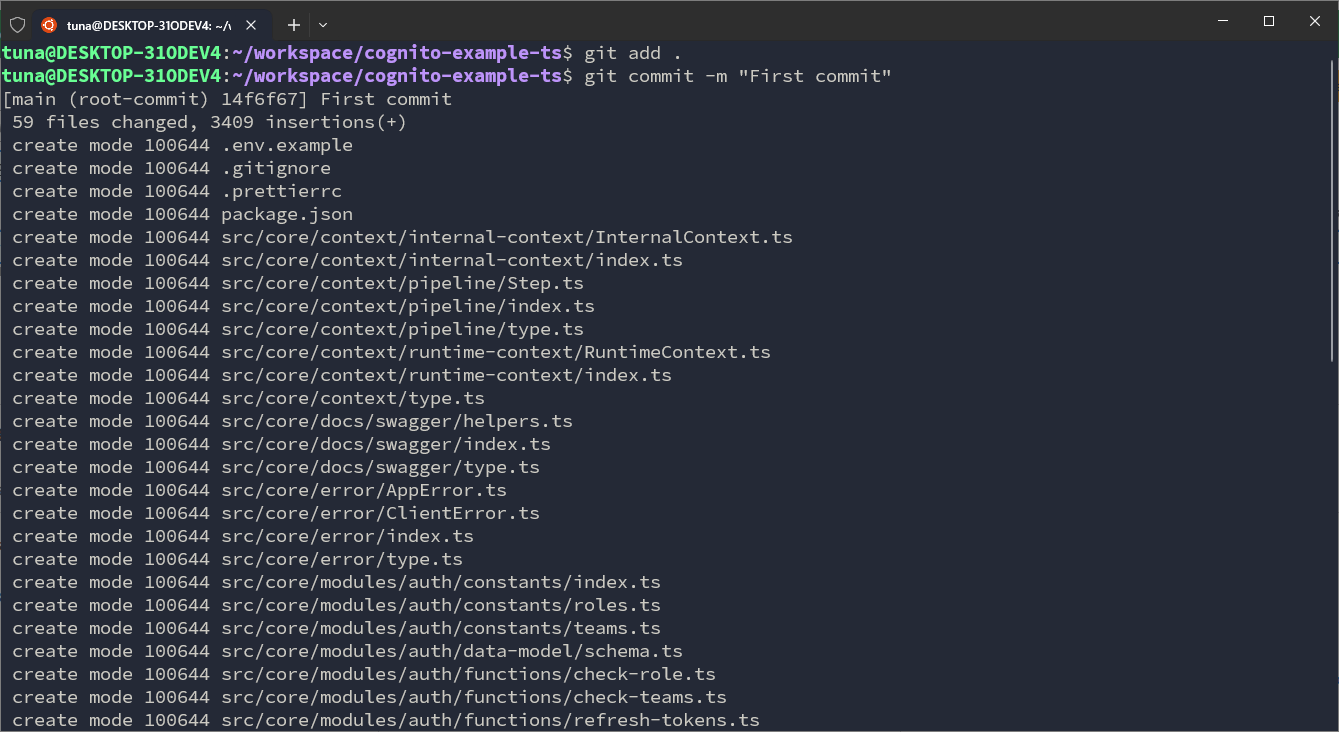
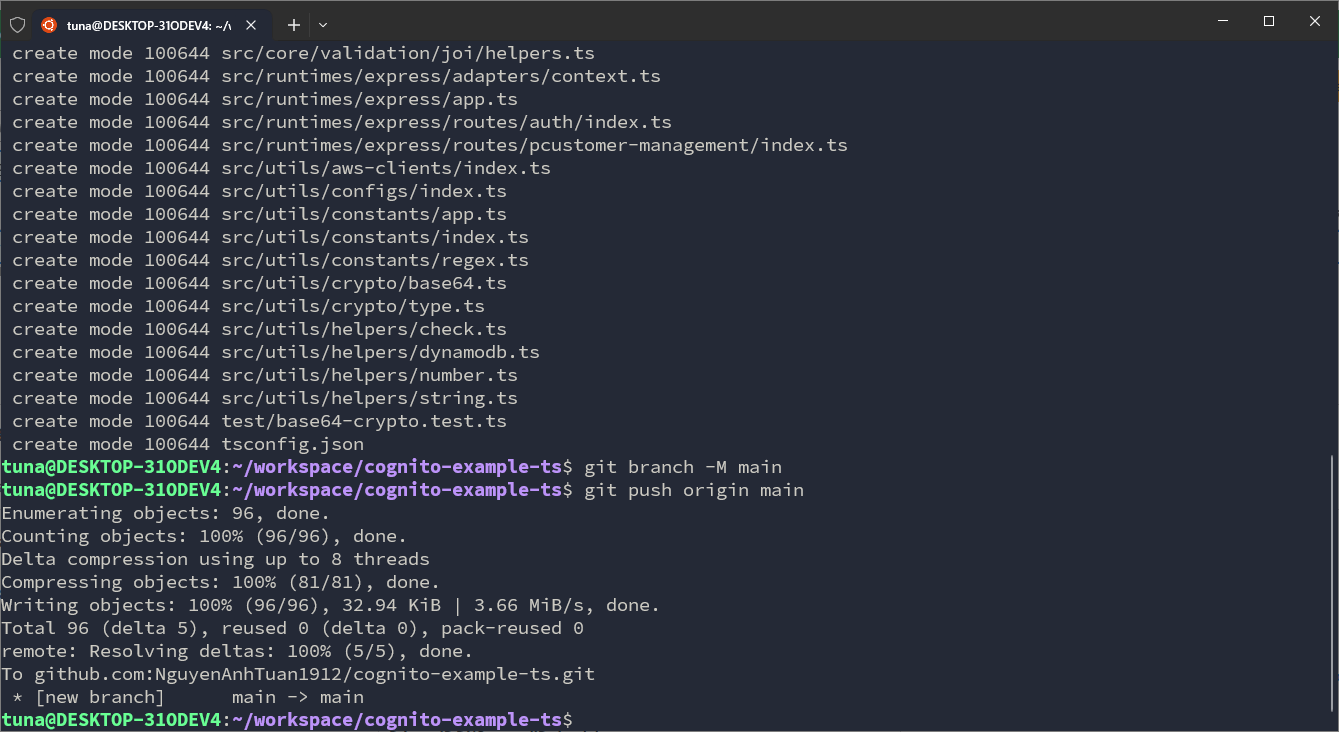
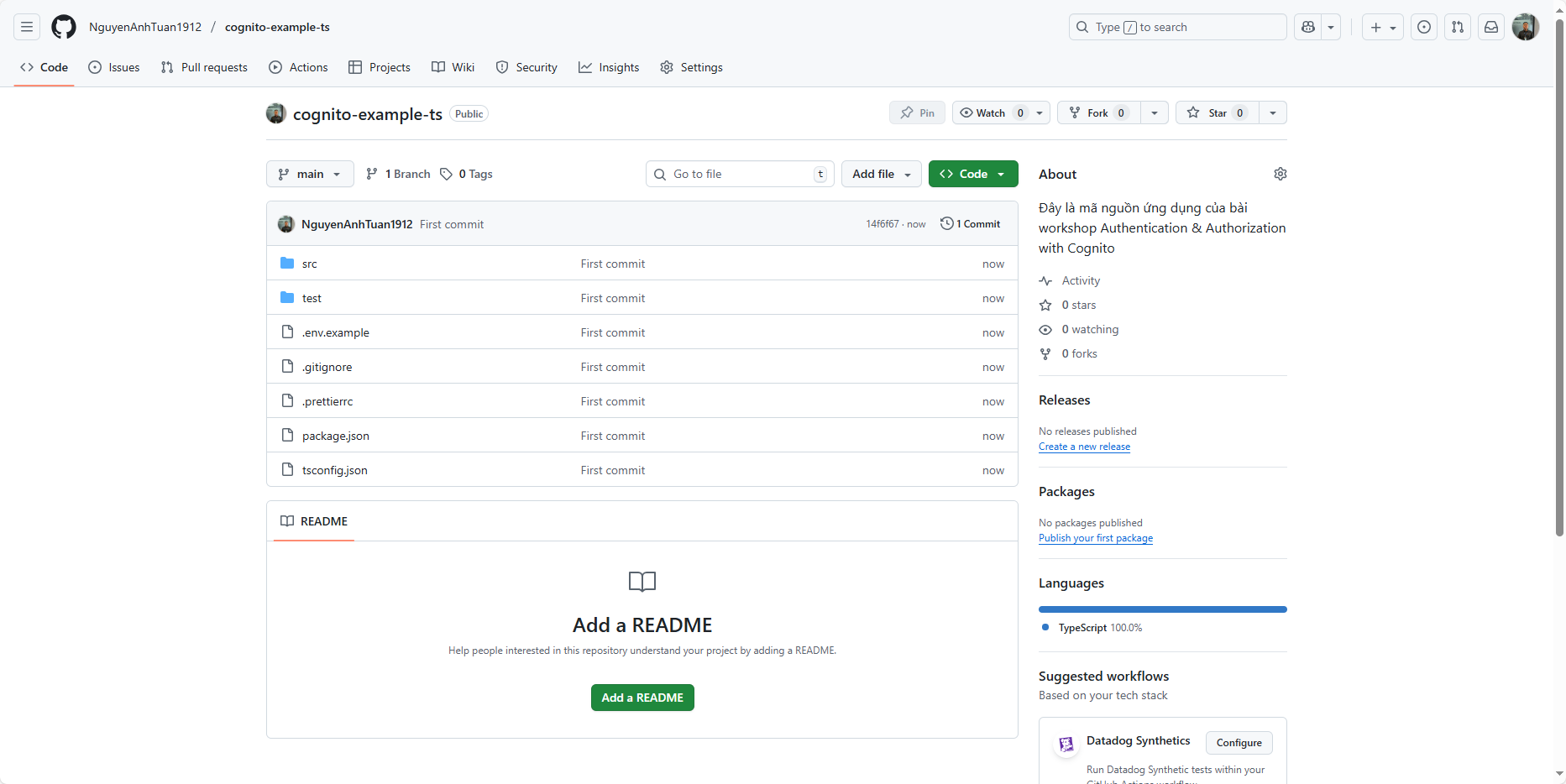
Similarly, push the Python code using the same commands, resulting in:
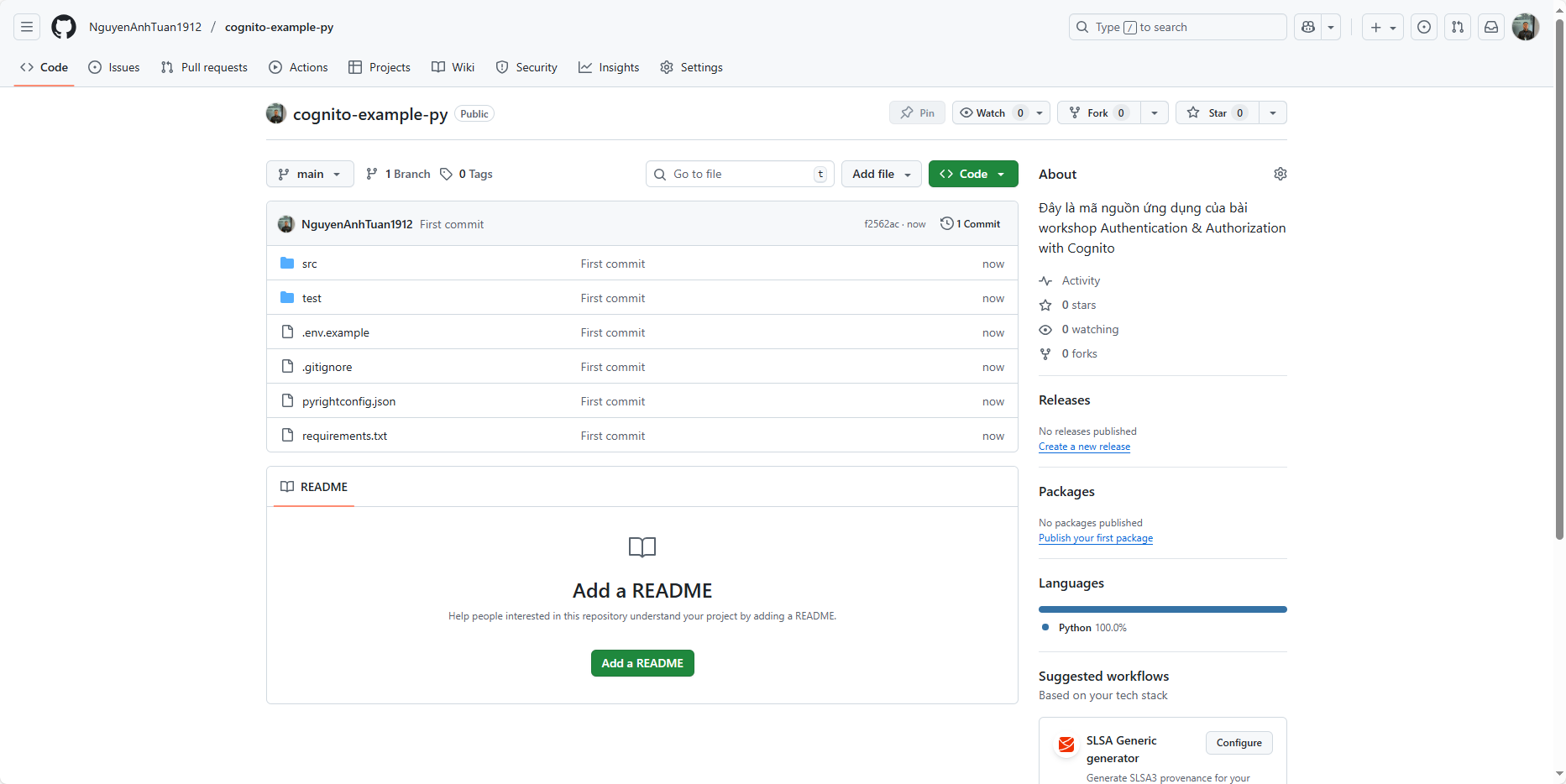
Setup code
Back in the EC2 instance (via VSCode), set up the environment exactly as you did locally. Ensure the following prerequisites exist in the EC2 instance:
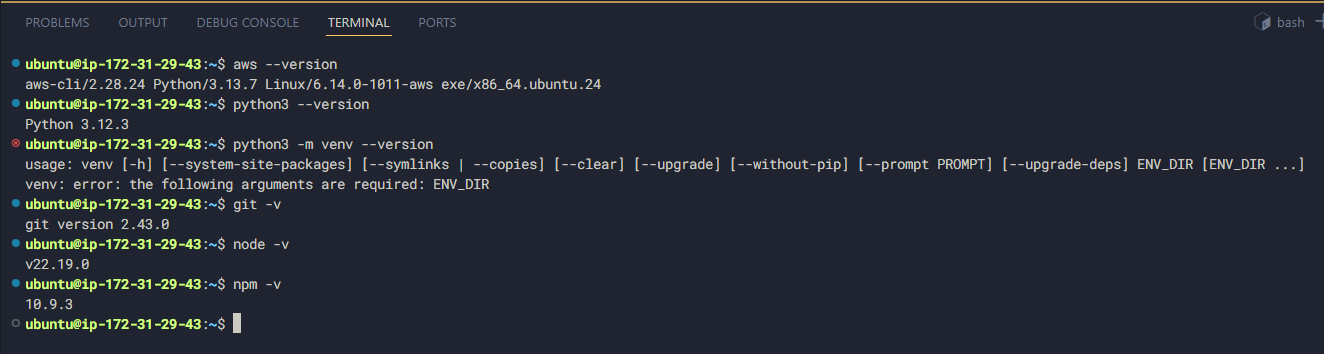
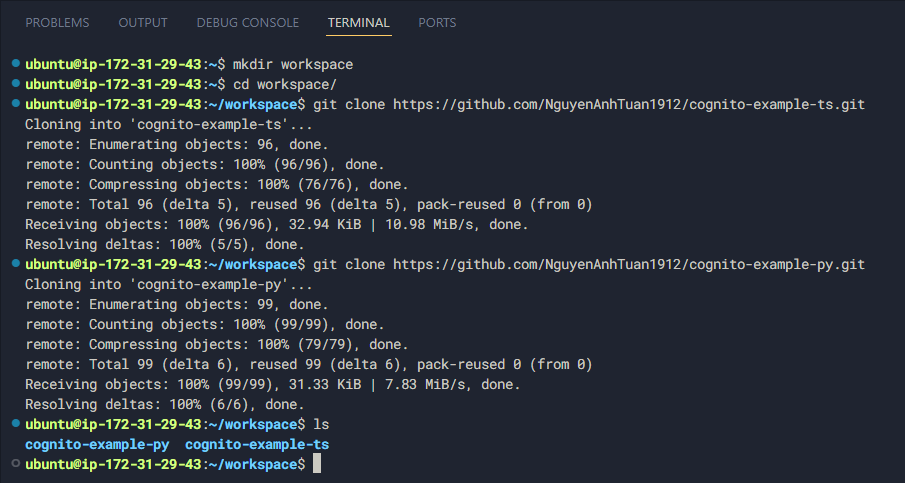
Next, replicate the local setup by creating a workspace folder. Store the TypeScript code in cognito-example-ts and Python code in cognito-example-py.
mkdir workspace
cd workspace
git clone <replace-ts-repo-url>
git clone <replace-py-repo-url>